Apply a case template to a case
Apply a case template to structure a case with predefined custom fields, tasks, and a notebook template. You can do this at the moment you create a case or at any point during an existing investigation.
Apply a template at case creation
- Open the case creation modal.
- In the Case template dropdown, search for and select the template that matches the incident type.
- Fill in the remaining case details and select Create.
The case opens with the template's custom fields, tasks, and notebook template already in place.
Template is optional
Selecting a template at creation is optional. You can always apply one to the case later.
Apply a template to an existing case
- Open the case you want to structure.
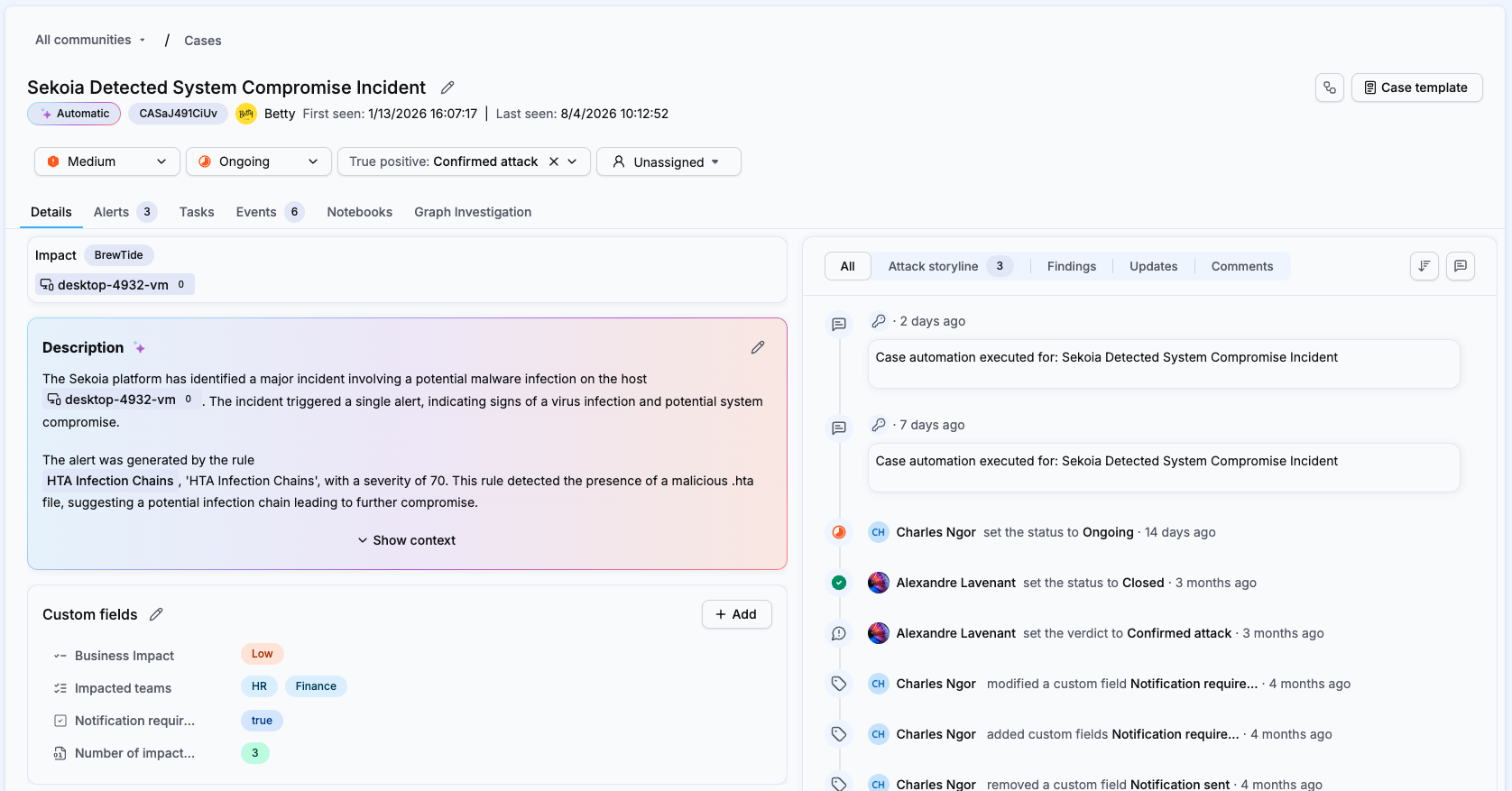
- In the top-right corner of the case, select Case template.
- In the modal, search for and select the template to apply.
- Confirm the selection.
The case is updated with the template's custom fields, tasks, and notebook template.
What happens when you apply multiple templates
Templates are additive. Applying a second template to a case that already has one does not reset the existing structure:
- Custom fields: fields from the new template are added. If a field is already on the case with a value, that value is kept. If the field is empty, the template's value fills it.
- Tasks: tasks from the new template are appended to the existing list.
- Notebook template: the new notebook is added alongside any existing one.
Review tasks after applying multiple templates
Because tasks accumulate with each template applied, check the task list afterward to remove any unintended duplicates.
Related articles
- Case templates: Overview of what case templates are and how they work.
- Create a case template: How to build and configure a template in Settings.