Manage custom field definitions
Early Access
This feature is currently in Early Access and is only available for Beta testers. Sekoia.io plans to roll out this functionality to all environments soon.
Custom field definitions determine which structured metadata fields are available across all alerts and cases in your workspace. This article explains how to create, edit, and delete those definitions from the workspace settings.
Definitions are shared between alerts and cases
A definition you create here can be attached to alerts, to cases, or to both. You do not need to create the same field twice.
Prerequisites
By default, users with the Admin or Analyst role can manage custom field definitions. Contact your administrator if you need access to this section.
Access custom field settings
To open the custom field management page, navigate to Settings > Custom fields.
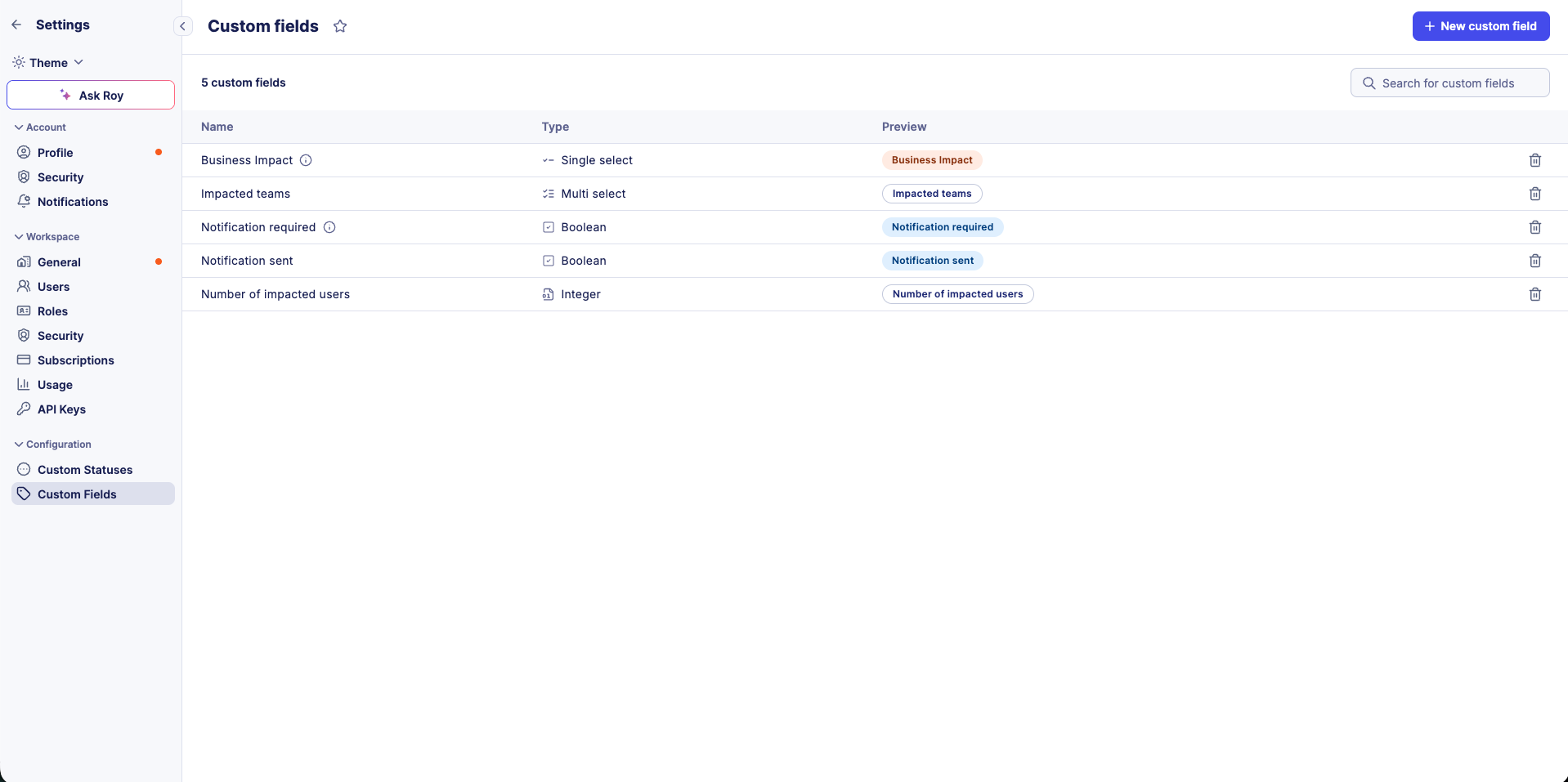
Create a custom field
Naming custom fields
Use descriptive names that clearly indicate what data the field should capture. For example, "Number of impacted users" is clearer than "User count".
To create a new custom field definition:
- Navigate to Settings > Custom fields.
- Click + Add.
- Enter a Name for the field.
- Enter an optional Description to help users understand the field's purpose.
- Select a Type from the dropdown menu.
- Choose a Color for visual identification.
- Enable Auto-add to new alerts to add this field automatically to every new alert.
- Enable Auto-add to new cases to add this field automatically to every new case.
- For Single select and Multi select types, define the available options.
- Click Save.
The two auto-add options are independent. Leave both disabled if you want analysts to add the field manually when they need it.
Edit a custom field
Type cannot be changed
The Type of a custom field cannot be changed after creation. To use a different type, delete the existing field and create a new one.
To modify an existing custom field definition:
- Navigate to Settings > Custom fields.
- Click the field you want to edit.
- Update the desired properties.
- Click Save.
Delete a custom field
Permanent data loss
Deleting a custom field definition removes the field and all its values from every alert and case in your workspace. This action cannot be undone.
To remove a custom field definition:
- Navigate to Settings > Custom fields.
- Click the field you want to delete.
- Click Delete.
- Confirm the deletion.
Related articles
- Custom fields: Overview of custom field types, shared definitions, multi-tenancy behavior, and workspace limits.
- Use custom fields: How to add and edit custom field values on individual alerts and cases.
- Query custom fields: SOL syntax and examples for filtering and aggregating alerts and cases by custom field values.
- Case details: Reference for every tab and field available on the case details page.