Use custom fields
Early Access
This feature is currently in Early Access and is only available for Beta testers. Sekoia.io plans to roll out this functionality to all environments soon.
Custom fields let you attach structured metadata to individual alerts and cases. This article explains how to add custom field values to an alert or a case, and how to update them during an investigation.
Prerequisites
Custom field definitions must exist in your workspace before you can use them. If no fields are available, ask your administrator to create definitions in Settings > Custom fields.
Definition creation
Read more about custom field definition creation in our dedicated article.
Add a custom field
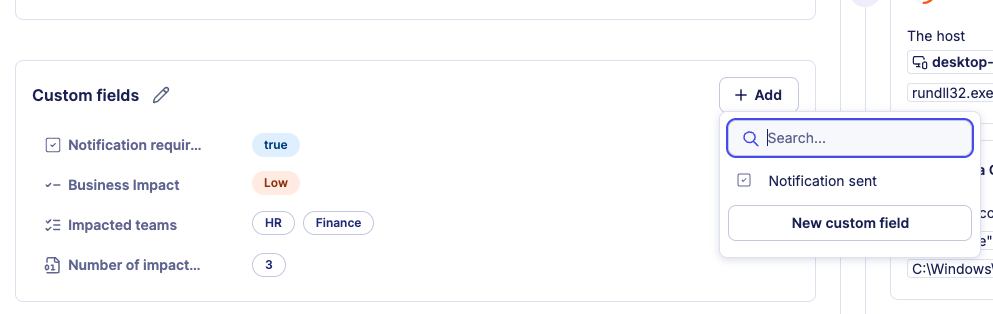
The screenshot below shows the Custom fields section on a case. The section looks and behaves identically on the alert details page.
Auto-added fields
Fields configured with Auto-add to new alerts or Auto-add to new cases appear automatically on every new alert or case. You only need to fill in their values.
To add a custom field value:
- Open the alert or case details page.
- Locate the Custom fields section.
- Click + Add.
- Select the field from the dropdown.
- Enter or select the appropriate value.
- Click Save.
Edit a custom field value
To update an existing custom field value:
- Open the alert or case details page.
- In the Custom fields section, click the field you want to edit.
- Modify the value.
- Click Save.
All changes to custom field values on a case are recorded in the case history, providing a complete audit trail of modifications.
Related articles
- Custom fields: Overview of custom field types, shared definitions, multi-tenancy behavior, and workspace limits.
- Manage custom field definitions: How to create, edit, and delete custom field definitions in workspace settings.
- Query custom fields: SOL syntax and examples for filtering and aggregating alerts and cases by custom field values.
- Alerts: How to filter the alerts listing by custom field values and read the alert details page.
- Case details: Reference for every tab and field available on the case details page.
- Manage cases: How to filter cases by custom field values from the cases listing page.