Step 1: Explore the threat intelligence database
The Sekoia Intelligence database contains hundreds of thousands of threat objects: threat actors, malware families, attack campaigns, reports, indicators of compromise, and observables. This step shows you how to search and navigate this knowledge base effectively.
Before you begin
- You have an active Sekoia Intelligence subscription.
- Familiarize yourself with the key terms: see Glossary for definitions of indicator, observable, IOC, STIX, and TLP.
Understand the data model
The core of the Sekoia Intelligence database is the Objects section. It holds all the STIX 2.1 objects that represent structured threat knowledge: threat actors, malware, campaigns, reports, attack patterns, and indicators of compromise.
Sekoia analysts follow a specific process to build this knowledge. When they identify a new technical artifact, they first record it as an observable. If the observable is then confirmed to represent malicious activity, it is derived into an indicator and published in the Objects section, contextualized with a threat, a confidence rating, a validity date, and a kill chain phase.
Not every observable becomes an indicator. Because observables include all technical artifacts extracted from Sekoia's sources, the observable database also contains many non-malicious values, sometimes tagged to help you understand what you are looking at (for example, known egress nodes or public IP addresses).
| Observables | Indicators | |
|---|---|---|
| Definition | A technical artifact, not necessarily malicious | An indicator of compromise (IOC), always linked to a threat |
| Context | Not always contextualized, may carry tags | Always contextualized: confidence rating, validity date, kill chain phase |
| Exported in CTI feeds (API, TAXII, MISP) | No | Yes |
| Raises alerts in Sekoia Defend | Not directly. Tag-based detection rules can use them for warnings or to reduce false positives | Yes, in real time, and retroactively through retro-hunting within the indicator's validity period |
Search for indicators, not observables
If you are looking for indicators of compromise to detect a threat, search and filter on Objects, not on Observables. The observable database is not intended as a source of indicators: it contains many non-malicious technical artifacts alongside confirmed threats.
Open the intelligence database
In the navigation menu, select Observe > Intelligence.
The Intelligence page contains a main search bar and a results table. You can search from this page or from the search bar embedded in the navigation menu, which is accessible from any page in the platform.
Search currently requires an exact match
At the time of writing, the search only returns exact matches. For example, searching for russia returns no result. Search for the full official name, russian federation, instead. This behavior is expected to improve in a future release.
Search for a threat object
To search the database:
- Enter a search term in the main search bar (for example, a threat actor name, a malware family, a domain, or an IP address).
- Press Enter.
The results page shows three tabs:
| Tab | What it contains |
|---|---|
| Objects | STIX objects: threat actors, malware, campaigns, reports, indicators, attack patterns |
| Observables | Technical artifacts: IP addresses, domains, URLs, file hashes, email addresses |
| Unknown observables | Values you searched for that are not in the database |
Always check the Objects tab first
Start with the Objects tab to find contextualized, threat-linked information. Only check the Observables tab if you specifically need to verify a raw technical artifact.
Example: Search for a threat actor
Search for APT28.
Under the Objects tab, you will find the Intrusion Set object for APT28 (also known as Fancy Bear). Click the object name to open its detail page, which shows:
- A description of the group's known activities and targets
- Associated malware families and tools
- Related campaigns and attack patterns
- Known indicators linked to this group
- The MITRE ATT&CK techniques this group uses
Read an object detail page
Click any object in the results table to open its detail page.
The detail page shows:
- The object name, type, and description
- The TLP classification (who can view and share this information)
- The confidence and reliability levels assigned by Sekoia analysts
- Relationships to other objects (for example, a malware linked to a threat actor, or an indicator linked to a campaign)
- The source and last update date
📸 [SCREENSHOT SUGGESTION: An Intelligence object detail page for a threat actor, showing description, TLP badge, confidence level, related objects, and the relationship graph. | ALT TEXT: Threat actor detail page with description, TLP level, confidence score, and related CTI objects.]
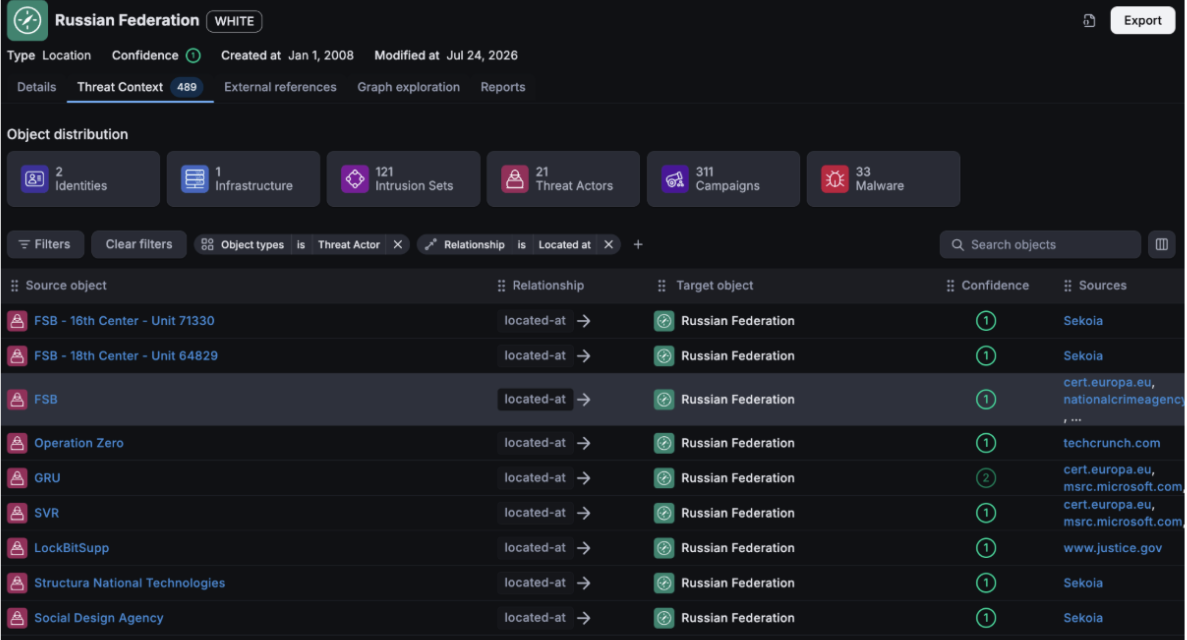
Use the threat context
Alongside the main description, every object detail page includes a Threat context section. Use it to pivot to the other objects directly connected to the one you are viewing.
The threat context is particularly useful to understand what surrounds an object: for example, the countries targeted by an attacker group, or the malware families used in a specific campaign.
Other tabs on an object page
Beyond the threat context, an object detail page can include the following tabs:
| Tab | What it provides |
|---|---|
| External references | Links to the third-party content that was used to produce this piece of knowledge |
| Graph exploration | A visual representation of the threat landscape around the object |
| Reports | Threat intelligence reports available in the Sekoia Intelligence database related to the object |
Understand TLP levels
TLP (Traffic Light Protocol) classifies how intelligence can be shared.
| TLP | Color in the interface | Sharing restriction |
|---|---|---|
| White | White badge | No restriction |
| Green | Green badge | Share within the security community |
| Amber | Amber badge | Restrict to your organization |
| Red | Red badge | Do not share outside direct recipients |
Most Sekoia Intelligence objects are TLP Amber or TLP White.
Understand confidence and reliability
Sekoia rates its intelligence using the Admiralty scale, an industry-standard method for evaluating information.
Confidence expresses how confident Sekoia is about a specific piece of information:
| Level | Meaning | Details |
|---|---|---|
| 1 | Confirmed by other sources | Confirmed by other independent sources, logical in itself, consistent with other information on the subject |
| 2 | Probably true | Not confirmed, logical in itself, consistent with other information on the subject |
| 3 | Possibly true | Not confirmed, reasonably logical in itself, agrees with some other information on the subject |
| 4 | Doubtful | Not confirmed, possible but not logical, no other information on the subject |
| 5 | Improbable | Not confirmed, not logical in itself, contradicted by other information on the subject |
| 6 | Truth cannot be judged | No basis exists for evaluating the validity of the information |
Reliability expresses how reliable the source of the information is:
| Level | Meaning | Details |
|---|---|---|
| A | Completely reliable | No doubt of authenticity, trustworthiness, or competency; has a history of complete reliability |
| B | Usually reliable | Minor doubt about authenticity, trustworthiness, or competency; has a history of valid information most of the time |
| C | Fairly reliable | Doubt of authenticity, trustworthiness, or competency but has provided valid information in the past |
| D | Not usually reliable | Significant doubt about authenticity, trustworthiness, or competency but has provided valid information in the past |
| E | Unreliable | Lacking in authenticity, trustworthiness, and competency; history of invalid information |
| F | Reliability cannot be judged | No basis exists for evaluating the reliability of the source |
See the full Data model reference for more detail on how confidence and reliability apply to Sekoia objects.
Search for observables
To check whether a specific value, such as an IP address, domain, or file hash, is known in the Sekoia Intelligence database:
- Enter the value directly in the search bar (for example,
185.213.83.102ora5f3c2d1...). - Check the Observables tab in the results.
If the observable is known and currently valid (within its validity period), it displays a blue tag. If the validity period has passed, it displays an orange tag.
Filter results
To refine your search, open the filter panel on the left side of the results table. You can filter by:
- Object type (report, intrusion set, malware, indicator, etc.)
- TLP level
- Source
- Confidence level
- Last update date
Related links
- Step 2: Investigate and disseminate threat intelligence: Find and interpret FLINT reports and disseminate intelligence to your tools.
- Data model: Full reference on STIX objects, observables, confidence, and reliability.
- Glossary: Definitions of key CTI terms.