Manage alerts
The Alerts page is the primary interface for monitoring security detections. By default, it displays the last 10 alerts ordered by the most recent.
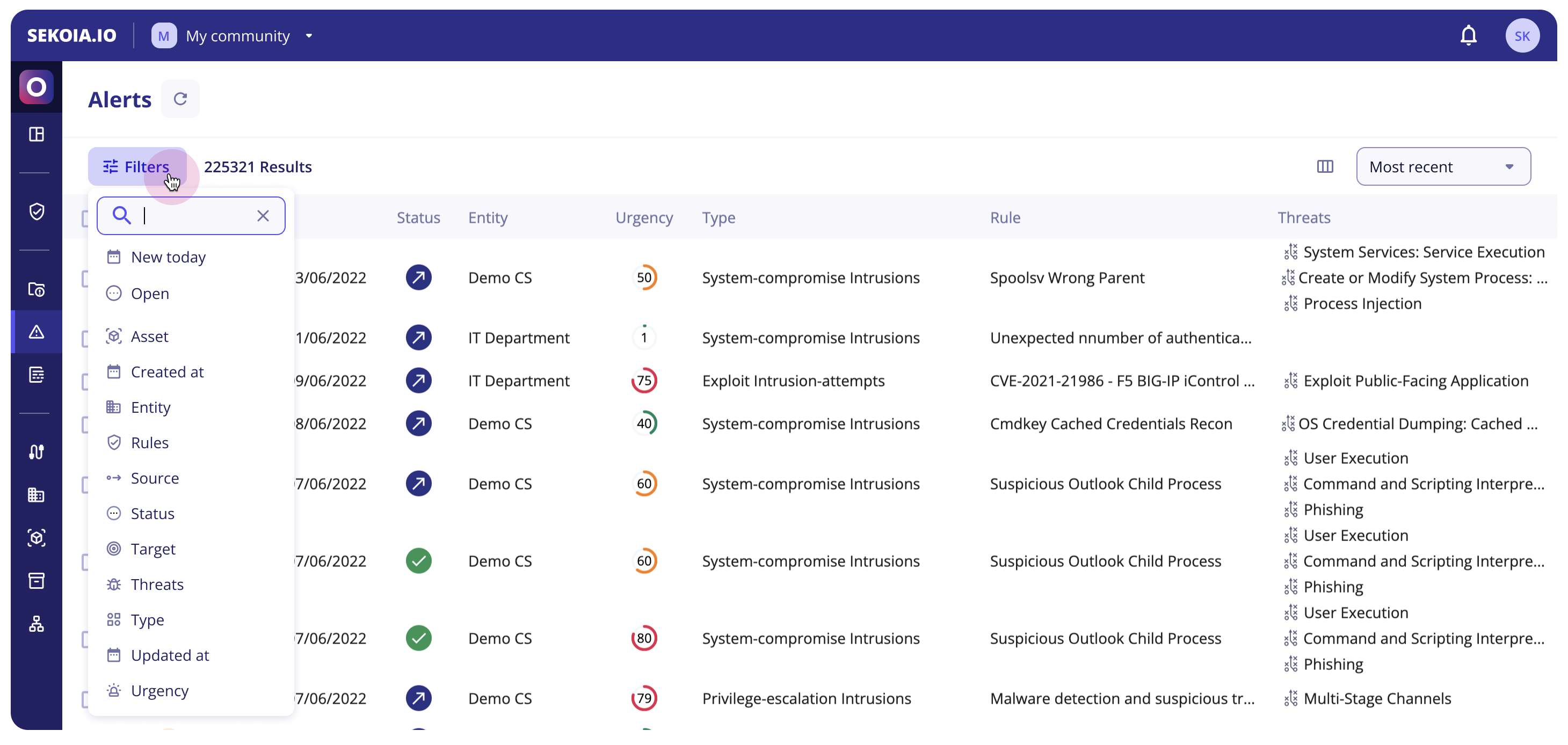
Sort alerts
You can sort the alert listing using the following options:
| Sort option | Description |
|---|---|
| Most Recent | Orders alerts by creation date, newest first. Default view. |
| Most Frequent | Orders alerts by occurrence count. |
| Recently Updated | Orders alerts by the date of the last status change. |
| Most Urgent | Orders alerts by urgency score, highest first. |
Process alerts in bulk
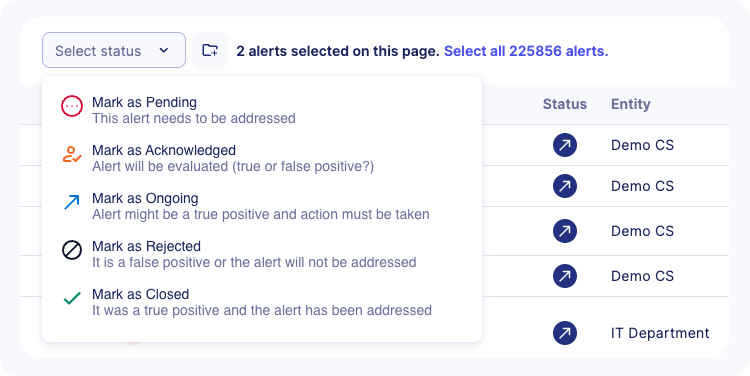
- Select alerts using the checkboxes in the list.
- To select alerts across all pages, click Select all XX alerts.
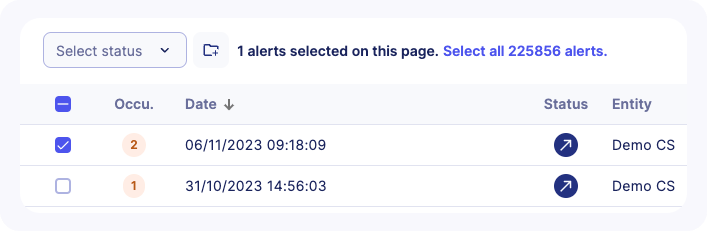
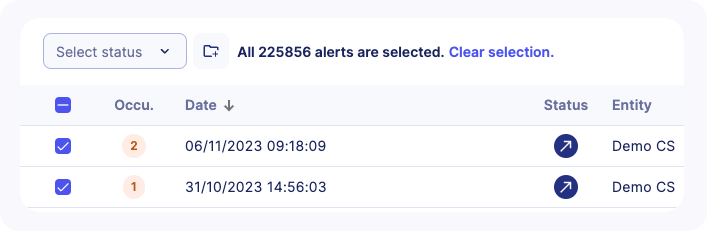
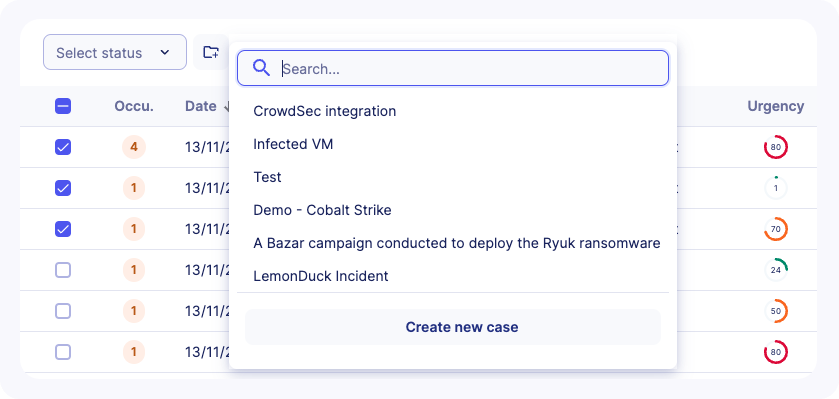
- Perform one of the following actions:
- Add to case - Select an existing case or create a new one.
- Change status - Select a new status, enter a comment to explain the decision, then click Update status.
Note
For multi-tenant communities, alerts can only be added to cases that belong to the same community. Leaving a comment when changing status is recommended but not mandatory.
Related articles
- Filter and suppress alerts: Build complex queries and suppress false positives.
- Investigate an alert: Deep-dive into alert details, tasks, events, and similar alerts.
- Investigate alerts with Graph: Use visual correlation to analyze complex threats.
- Alerts: Understand alert urgency, similarity, and lifecycle logic.
- Alert interface reference: Detailed lookup for alert table columns and icons.