Custom priorities
Custom priorities define how urgent a case is, using the levels and the vocabulary your team actually works with. You configure them in Settings > Custom Statuses, under the Priority section. Priorities apply to cases only, not to alerts.
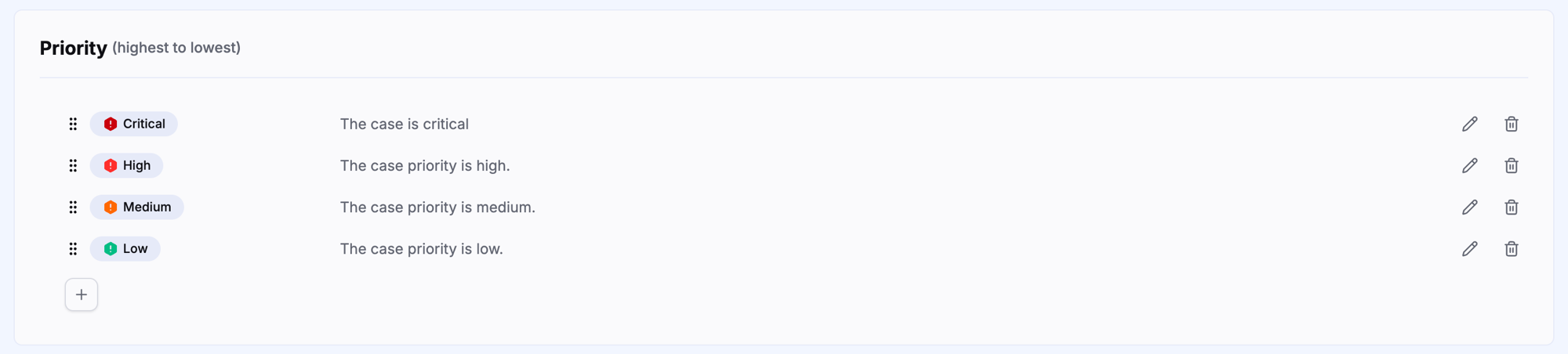
Default priorities
| Priority | Description |
|---|---|
| Critical | The case is critical |
| High | The case priority is high. |
| Medium | The case priority is medium. |
| Low | The case priority is low. |
You can rename these levels, change their color and description, add your own, or work with a longer or shorter scale.
How priorities are ordered
The Priority section lists levels from highest to lowest. The order is meaningful. It drives the sort order of the cases listing and the Highest priority sort option, so the level at the top of the list is the one your team treats as the most urgent.
To reorder priorities, drag a level by its handle and drop it where you want it.
Create a custom priority
- Navigate to Settings > Custom Statuses.
- Click
+under the Priority section. - Enter a Name.
- Enter a Description explaining when your team should use this level.
- Select a color.
- Click Save.
Priorities have no migration flow
Unlike custom statuses, a priority that is in use cannot be deleted by reassigning its cases to another priority. You have to change the priority on every case first. Only statuses offer the reassignment described in Migrate custom statuses.
Edit a custom priority
Editing happens inline on the priority row.
- Click the edit icon on the priority you want to modify.
- Update the name, the description, the color, or all three.
- Click Save.
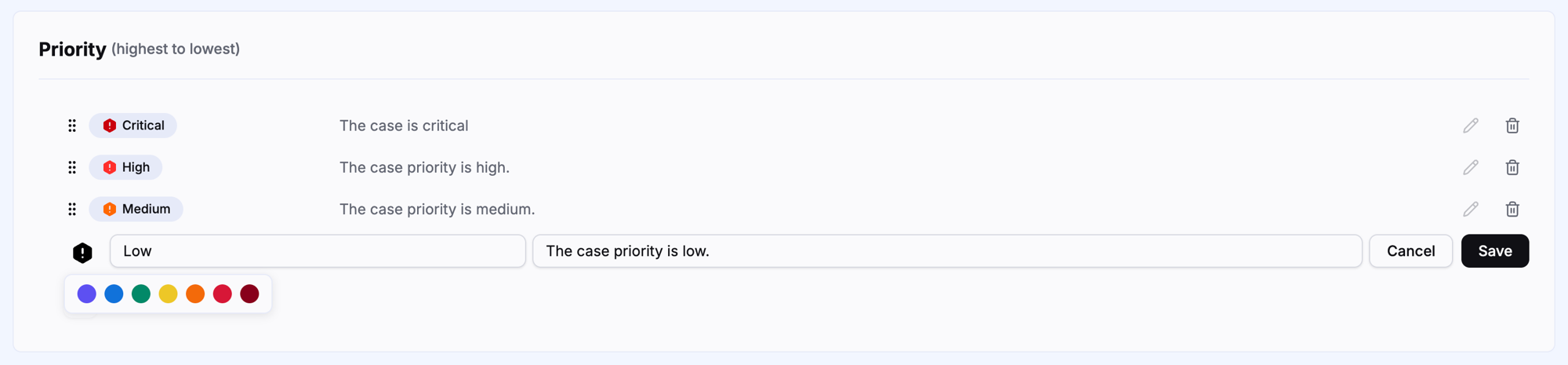
The color you pick is the one analysts see on the priority badge in the cases listing and on the case details page. Custom statuses do not offer this choice, they take their color from their stage.
Delete a custom priority
A priority can be deleted only if no case currently carries it.
- Change the priority on every case that uses it.
- Once the priority is no longer in use, in Settings > Custom Statuses > Priority section, click the delete icon on the priority row.
Where priorities appear
| Location | Usage |
|---|---|
| Case creation | You set the priority when you open a case. |
| Cases listing | You filter by priority, and sort by highest priority. |
| Case details | The priority is shown in the case header. |
| Bulk actions | You change the priority of several cases at once. |
Related articles
- Custom statuses: What custom statuses are, and how they differ from verdicts and priorities.
- Manage custom statuses: How to create, edit, reorder and enable custom statuses.
- AI Cases: How Sekoia.io correlates alerts into cases and assigns them a priority.
- Create a case: How to open a case and set its initial priority.
- Manage cases: How to filter and sort cases by priority, and change the priority of several cases at once.