Manage custom statuses
This article explains how to create, edit, reorder and enable custom statuses from the configuration page. All of it happens in Settings > Custom Statuses, under the Status section.
Create a custom status
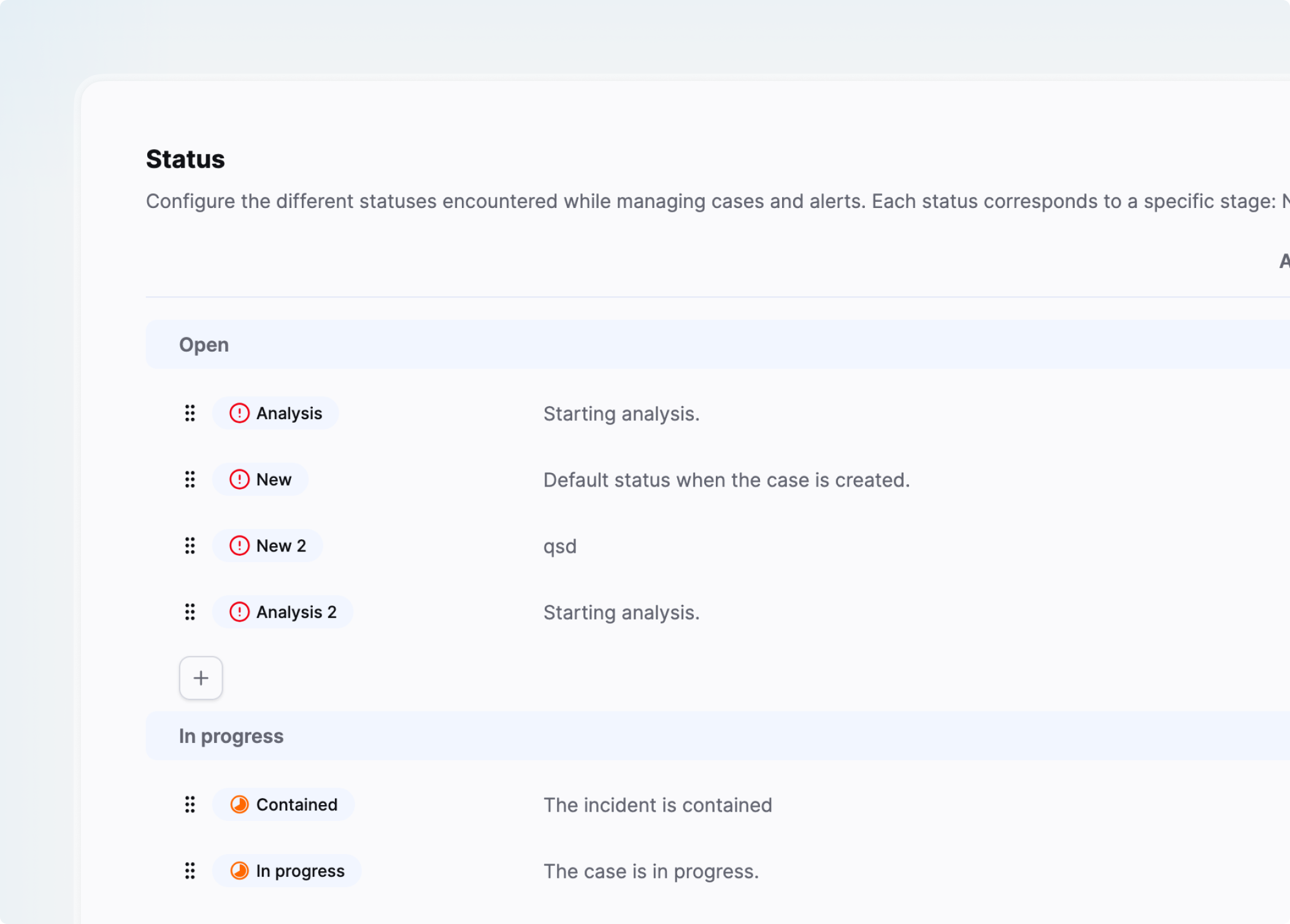
Statuses are grouped by stage, and you create a status directly inside the stage it belongs to.
- Navigate to Settings > Custom Statuses.
- Click
+under the stage you want the status to belong to: Open, In progress or Closed. - Enter a Name, for example "Under investigation" or "Awaiting user response".
- Enter a Description explaining when your team should use this status.
- Save your changes.
Choose the stage deliberately
The stage is not a label, it drives platform behavior. Alerts in the Open and In progress stages keep collecting similar occurrences, and cases in the Closed stage can no longer be edited. Pick the stage that matches what the status means operationally.
Edit a custom status
- Click the edit icon on the status you want to modify.
- Update the name, the description, or both.
- Save your changes.
Renaming does not rewrite history
Alert timelines and case histories keep the status name that was in use at the time of each change, so renaming a status never alters past records.
Reorder statuses
The order you set here is the order analysts see in every status menu across the platform.
- Navigate to Settings > Custom Statuses.
- Drag a status by its handle.
- Drop it in the position you want.
Enable a status for alerts and cases
A status can serve alerts, cases, or both. The Alert and Case columns control this, one checkbox per context.
- Locate the status you want to configure.
- Select the checkbox in the Alert column to make it available on alerts.
- Select the checkbox in the Case column to make it available on cases.
Selecting both gives you a unified status, so your team uses the same vocabulary whether it is triaging an alert or investigating a case.
Clearing a checkbox on a status that alerts or cases already carry starts a migration, because those items need somewhere to go. See Migrate custom statuses.
Related articles
- Custom statuses: What custom statuses are, the three stages, and how one status serves both alerts and cases.
- Migrate custom statuses: How to disable or delete a status that is already in use by reassigning its alerts and cases.
- Custom verdicts: How to standardize the classification of alert and case outcomes.
- Custom priorities: How case priority levels are configured and ordered.