Custom statuses
Custom statuses let your SOC team define the lifecycle that alerts and cases follow, instead of adopting a fixed workflow. You create, order and configure them in Settings > Custom Statuses, and the same status can serve both alerts and cases.
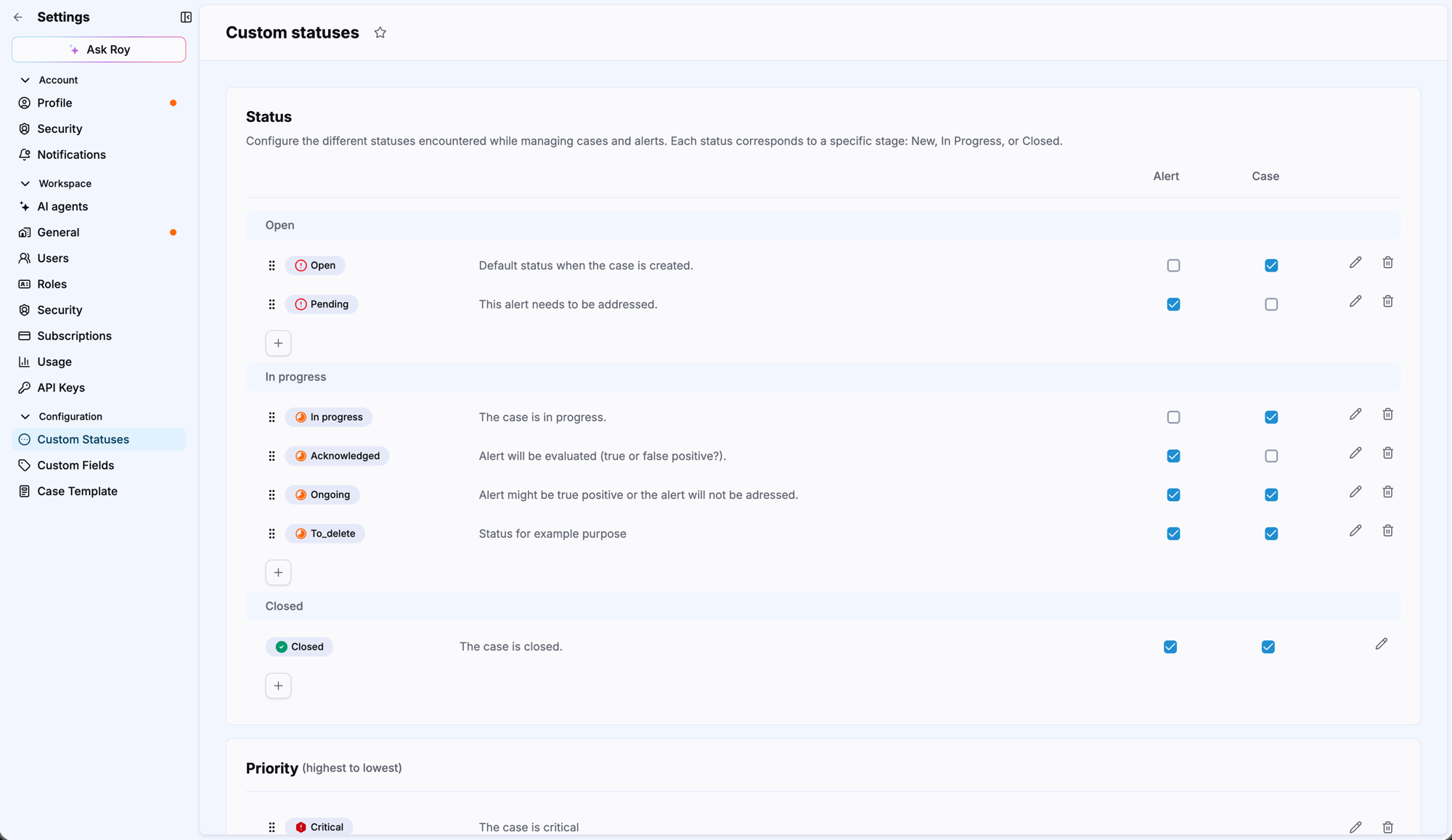
Status stages
Every custom status belongs to one of three stages. The stage defines where the status sits in the lifecycle and drives platform behavior beyond the label itself.
| Stage | Meaning |
|---|---|
| Open | Initial stage for new or unprocessed alerts and cases. |
| In progress | Intermediate stage for items under investigation or awaiting action. |
| Closed | Final stage for items that have been resolved or dismissed. |
Info
Stages are not cosmetic. They determine the overall state of an alert or a case, and features such as search filters, alert similarity and case editing rely on them. Alerts whose status is in the Open or In progress stage keep collecting similar occurrences, while a status in the Closed stage causes a new alert to be created instead. Cases in the Closed stage cannot be edited.
One status, two contexts
A custom status can apply to alerts, to cases, or to both. The Alert and Case columns on the configuration page control this, one checkbox per context.
Enabling a status for both contexts gives your team a single vocabulary across the investigation chain, so an analyst reading a case and an analyst triaging an alert use the same words for the same state.
Statuses, verdicts and priorities
The Settings > Custom Statuses page configures three distinct concepts. They are often confused, so they are worth separating.
| Concept | Answers | Applies to | Color |
|---|---|---|---|
| Status | Where is this item in the workflow? | Alerts and cases | Inherited from the stage |
| Verdict | What was the conclusion of the investigation? | Alerts and cases | Inherited from the category |
| Priority | How urgent is this item? | Cases | Chosen when you create or edit the priority |
Statuses are also the only one of the three that you can retire while it is still in use. See Migrate custom statuses.
History is preserved
Renaming a custom status, or retiring one, never rewrites the past. Alert timelines and case histories keep the status name that was in use at the time of each change, so the audit trail stays truthful.
Automatic migration of legacy statuses
The legacy alert statuses (Pending, Acknowledged, Ongoing, Closed, Rejected) are automatically converted to custom statuses for existing users. Your current workflows remain unchanged.
Related articles
- Manage custom statuses: How to create, edit, reorder and enable custom statuses for alerts and cases.
- Migrate custom statuses: How to disable or delete a status that is already in use by reassigning its alerts and cases.
- Custom verdicts: How to standardize the classification of alert and case outcomes.
- Custom priorities: How case priority levels are configured and ordered.
- Alerts: How alerts are created, triaged and moved through their lifecycle.
- Cases: Overview of what cases are and how they are structured.