Run a playbook from a case
You can trigger a playbook directly from a case, without leaving the investigation. Any playbook built on the Manual Trigger for Case trigger appears in the case's playbook panel and runs against the case context in one click.
Before you begin
The playbook you want to run must use the Manual Trigger for Case trigger and be active. Playbooks built on any other trigger do not appear in the case panel. See Make a playbook available in cases below.
You need the Analyst or Admin built-in role. The Guest role is read-only and cannot trigger a playbook. See Built-in roles for what each role covers.
Make a playbook available in cases
A playbook becomes available in cases as soon as its entry node is the Manual Trigger for Case trigger.
- Navigate to Playbooks.
- Open an existing playbook or create a new one.
- In the Actions Library, select Triggers.
- Add the Manual Trigger for Case trigger to the graph as the entry node.
- Add the actions the playbook must perform. Start with the Get case action to retrieve the case content, then chain the response actions you need, for example Comment case.
- Set the playbook status to On.
- Click Save.
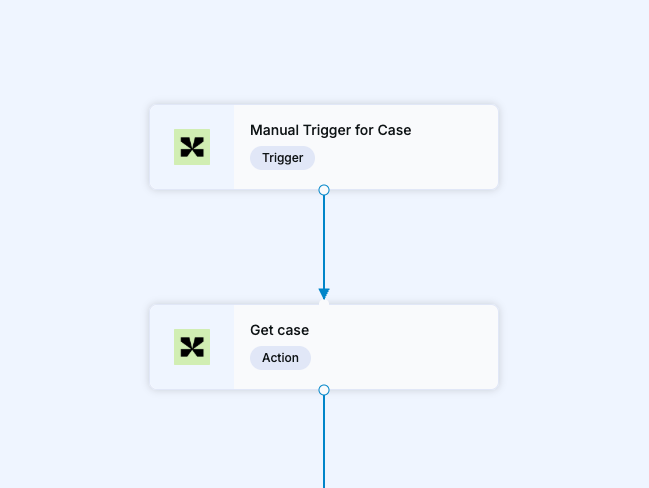
Scope of the trigger
The trigger makes the playbook available on every case of the community it belongs to. It does not restrict the playbook to a subset of cases.
Run a playbook from a case
- Open the case you want to act on.
-
In the case header, click the playbook icon to open the Available playbooks for this case panel.
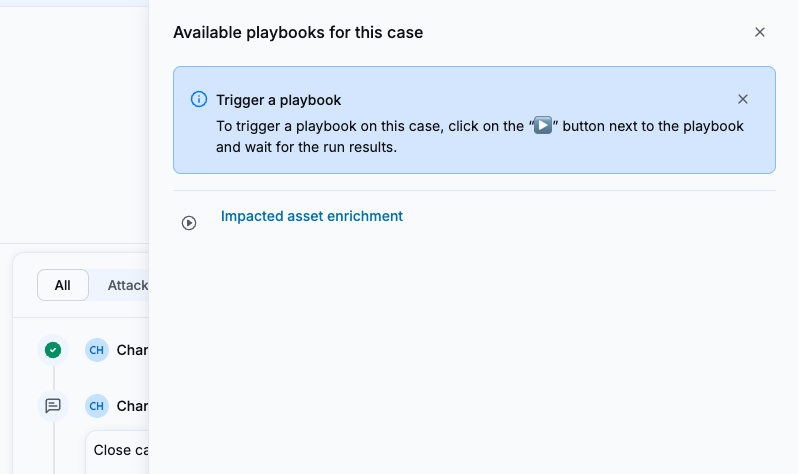
The panel lists every playbook built on the Manual Trigger for Case trigger.
-
Locate the playbook you want to run.
-
Click the run button next to the playbook name.
The button turns into a loading indicator while the run is in progress, and the View last runs performed section appears under the playbook name.
The playbook runs against the case it was triggered from. You can keep working in the case while it executes.
View the run result
When the run completes, its result appears in the panel.
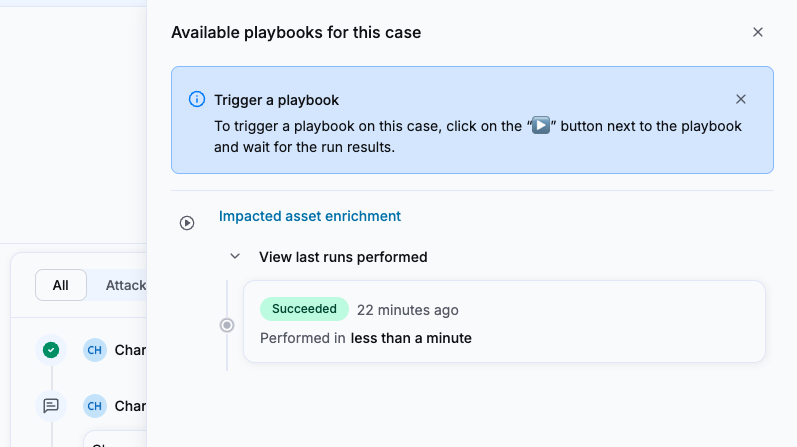
- Click View last runs performed under the playbook name.
-
Read the run card. It displays:
- The status of the run.
- The time elapsed since the run was triggered, for example "less than a minute ago".
- The duration of the run, for example "Performed in less than a minute".
-
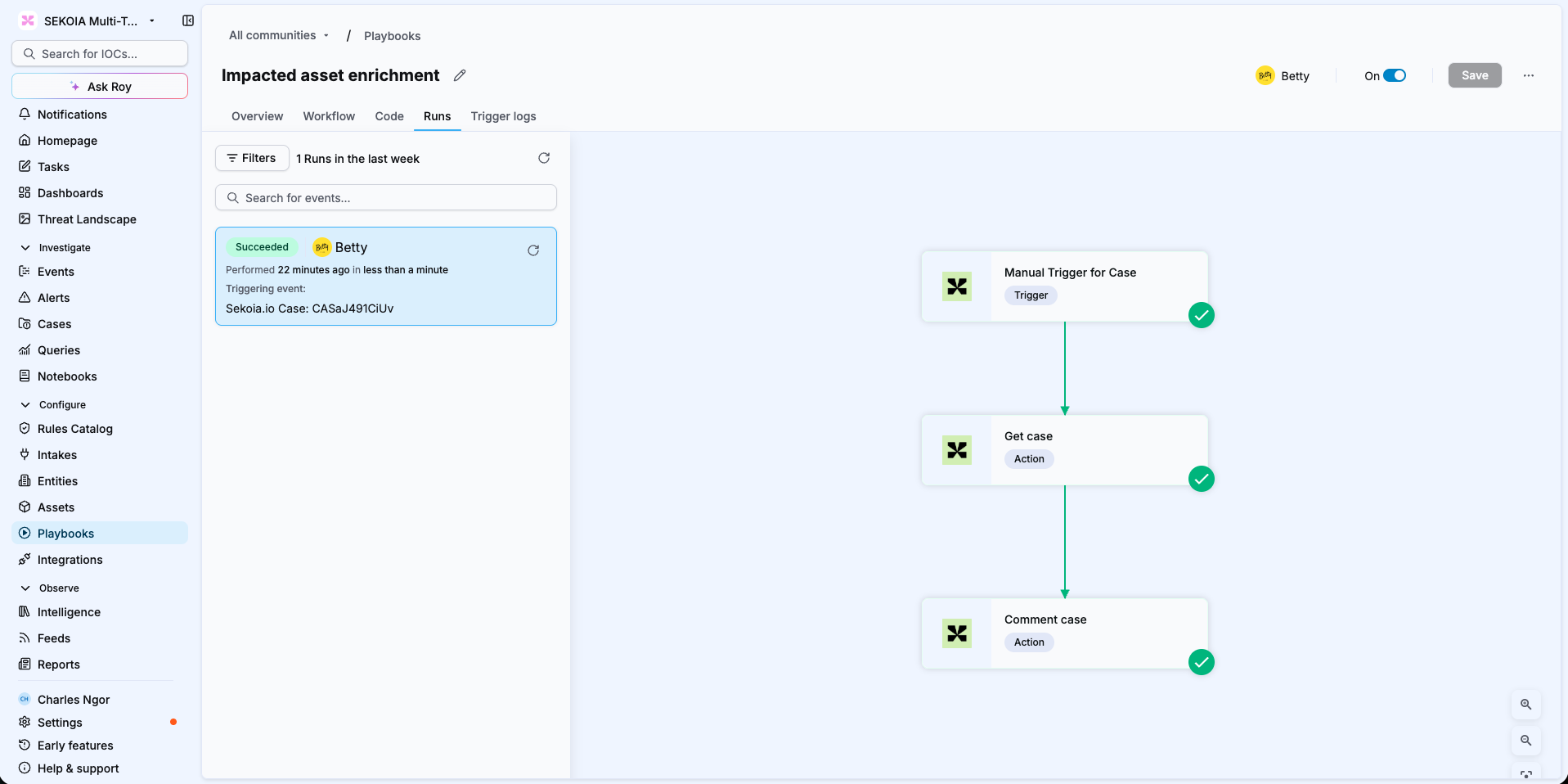
Click the run card to open the full result. Sekoia redirects you to the playbook details page on the Runs tab.
The run is identified by its triggering case, Sekoia Case: <case short ID>, so you can tell case-triggered runs apart from runs started elsewhere. The graph displays the status of each node, and clicking a node opens its arguments, logs and errors. See Navigate playbooks' interface for the full description of the Runs tab.
Case activity feed
Triggering a playbook does not create an entry in the case activity feed. Only the actions the playbook performs appear there, for example a comment added to the case or a field updated.
Related articles
- Cases: Overview of what cases are and how they are structured.
- Case details: Reference for every tab and field available on the case details page.
- Playbooks: Overview of playbooks and how the automation engine works.
- Build playbooks: How to create a playbook from a template or from scratch.
- Triggers: The trigger types available to launch a playbook.
- Navigate playbooks' interface: How to read the playbook listing, workflow, runs and trigger logs.
- Built-in roles: The default Guest, Analyst and Admin roles and what each one allows.