Alerts
Alerts are created by the Operations Center when an incoming event matches a detection rule and a threat is detected. Each alert represents a discrete security signal, enriched with context about the impacted assets, the rule that fired, and the associated threat intelligence.
Alert urgency
Urgency is a numerical score that reflects the risk associated with a specific alert. It is calculated from the severity of the detection rule and the criticality of the assets involved, and ranges from 1 (very low risk) to 100 (very high risk).
Formula: Alert urgency = (Rule severity + Asset criticality) / 2
Note
When asset criticality is set to 0 (N/A), the alert urgency equals the rule severity alone.
Urgency is displayed in two forms across the platform:
| Label | Value range |
|---|---|
| Low | 0–49 |
| Medium | 50–74 |
| High | 75–100 |
Alert similarity
Alert similarity, shown as Occurrence in the alerts table, is the mechanism by which Sekoia groups matching events into the same alert instead of creating a new one for each occurrence. If an alert shows 24 occurrences, it contains 24 events that were classified as similar and consolidated together.
Similarity strategies
Alerts are considered similar when a defined set of fields share identical values across events. Sekoia applies similarity strategies in the following order of priority:
Note
The effective similarity strategy for an alert is displayed in the Details tab of that alert.
Similarity by rule
Rules in the Rules Catalog may define a custom similarity strategy, configured at rule creation time. See Custom similarity strategy.
Similarity by event
When no rule-level strategy is defined, Sekoia applies a strategy based on the event's characteristics. This logic follows Sekoia's internal guidelines and cannot be edited by users.
| Condition | Similarity strategy |
|---|---|
dns.question.name exists |
sekoiaio.entity.uuid, [source.ip, destination.ip], dns.question.name |
event.dialect is Windows and user.name exists |
sekoiaio.entity.uuid, user.name, user.id |
event.dialect is Azure Windows and process.name exists |
sekoiaio.entity.uuid, process.name, process.command_line |
event.dialect is Azure Active Directory, user.name exists, and action.name exists |
sekoiaio.entity.uuid, user.name, user.id, action.name, action.type, action.outcome |
event.dialect is Azure Active Directory and action.name exists |
sekoiaio.entity.uuid, action.name, action.type, action.outcome |
event.dialect is postfix |
sekoiaio.entity.uuid, email.from.address |
file.hash.sha256 matches the rule |
sekoiaio.entity.uuid, file.hash.sha256 |
file.hash.sha1 matches the rule |
sekoiaio.entity.uuid, file.hash.sha1 |
file.hash.md5 matches the rule |
sekoiaio.entity.uuid, file.hash.md5 |
Note
If event-based similarity does not meet your needs, contact your support team.
Default similarity
When no rule-level or event-level strategy applies, Sekoia uses the following default formula: same entity, same source.ip, and same destination.ip. The values of source.ip and destination.ip are interchangeable.
Warning
When no data is available due to parsing issues, alert similarity is not shown, except when source.ip or destination.ip is NULL. When both fields are empty, a NULL value may serve as the similarity basis.
Similarity and alert status
As long as a similar alert exists with a status in the Open or In Progress stage, new matching events are added to it as occurrences.
If all similar alerts carry a status in the Closed stage, a new alert is created. Those closed similar alerts are then listed in the Similar alerts tab of the new alert.
Alert types and categories
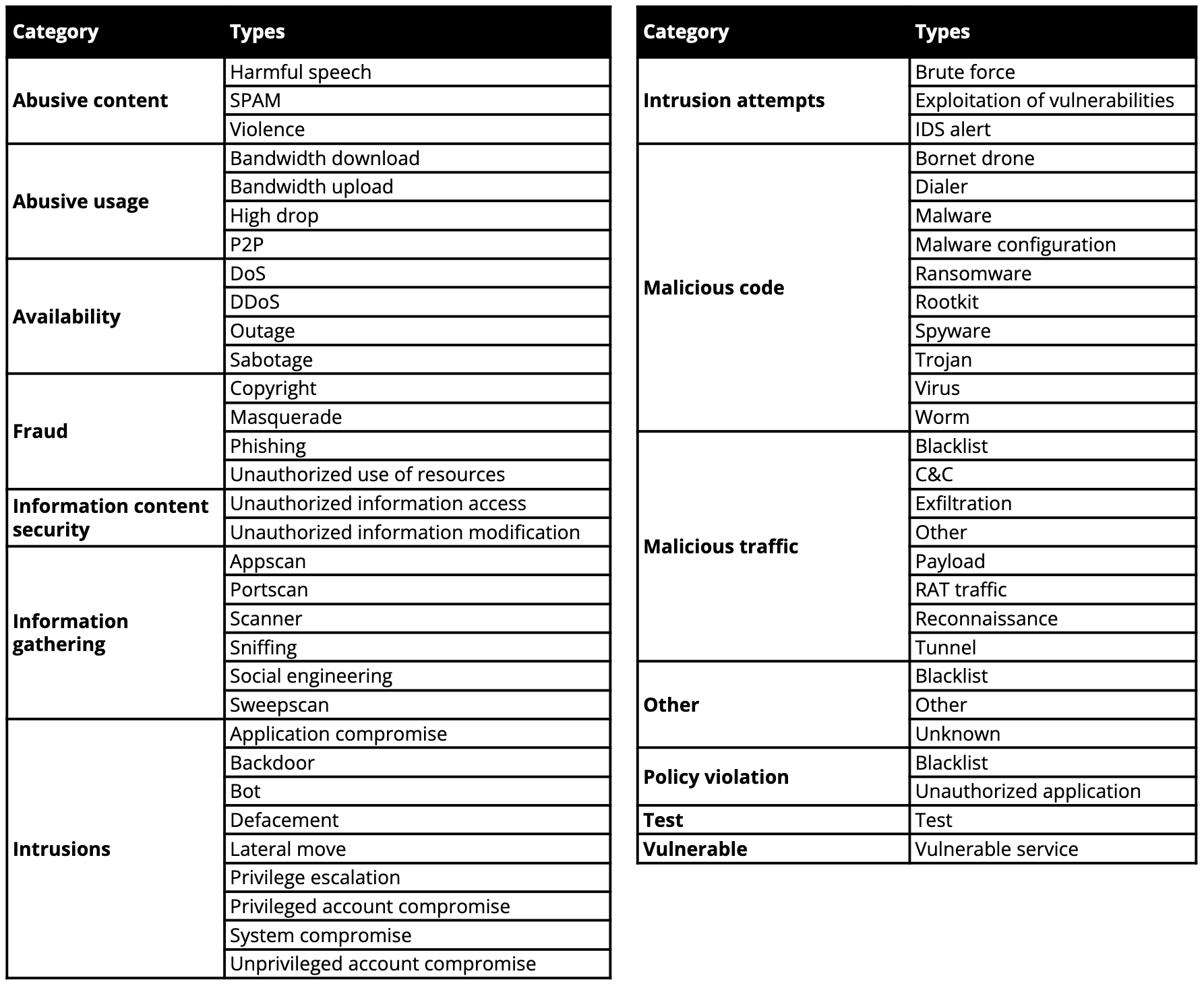
The alert type is determined by the rule that triggered the alert but can be overridden by the value associated with specific indicators in CTI rules. Alert types follow a custom taxonomy derived from the Reference Incident Classification Taxonomy of ENISA.
Related links
- Alerts listing: How to browse, filter, sort, and take bulk actions on alerts.
- Alert details: How to investigate an individual alert across its details, events, and graph investigation tabs.
- Configure custom statuses: How to create and manage the alert and case statuses used in your SOC workflow.
- Configure custom verdicts: How to create and manage analyst verdicts for alert and case outcomes.
- Rules catalog: Reference for detection rules, including how to configure custom similarity strategies.