Configure custom verdicts
Custom verdicts let your team define standardized classifications for alert and case outcomes. They go beyond a simple true positive or false positive label, giving analysts a shared vocabulary that improves consistency and makes reporting to stakeholders more precise.
Verdict categories
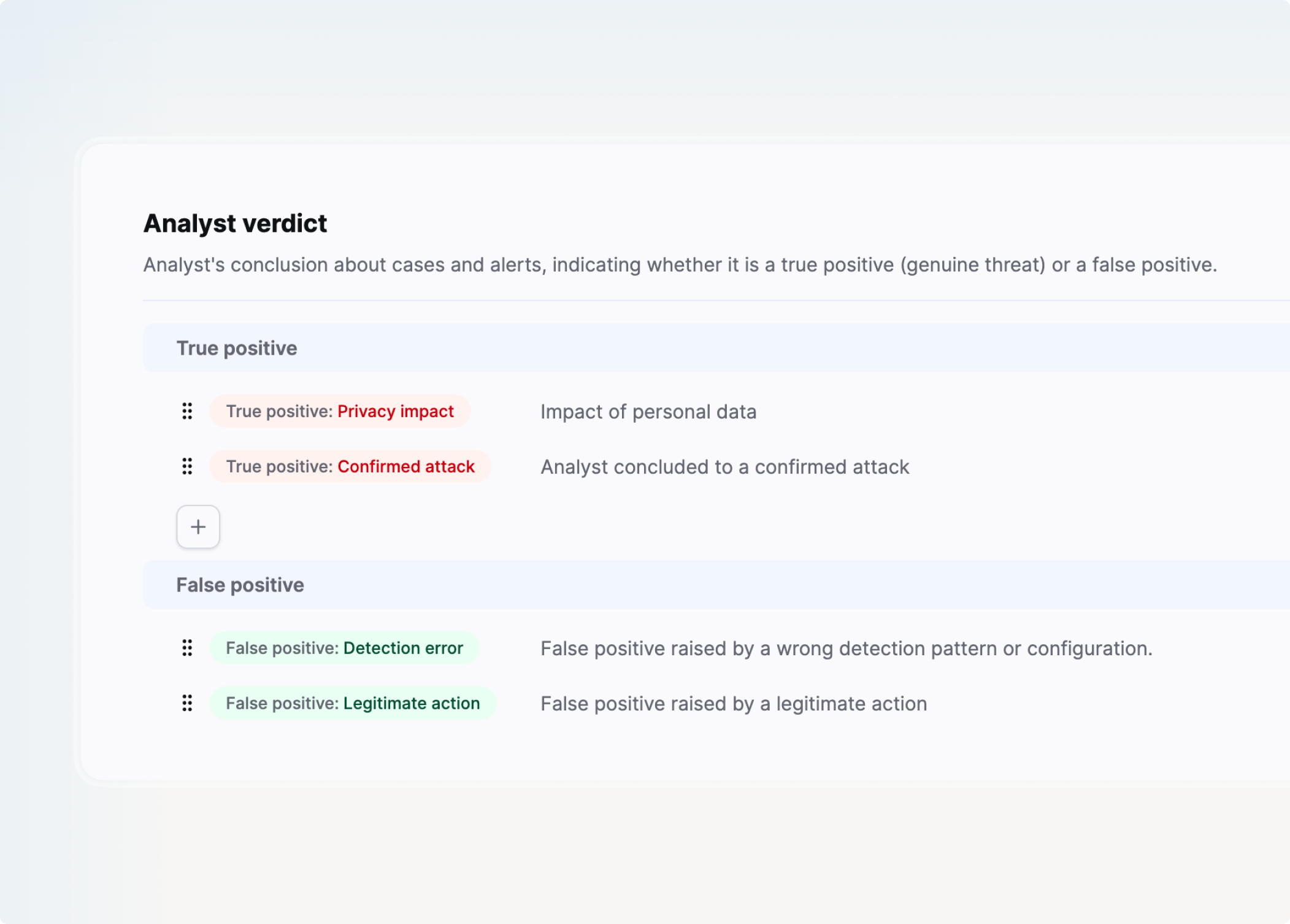
Each verdict belongs to one of two categories:
- True positive: the alert represents a genuine security threat or incident.
- False positive: the alert was triggered incorrectly or does not represent a real threat.
Custom verdicts capture nuanced distinctions within each category, for example "Confirmed malware", "Policy violation", or "Misconfiguration".
Create a custom verdict
- Navigate to the Analyst verdict configuration section.
- Click + in the appropriate category.
- Enter a Name (for example, "Confirmed malware" or "Benign activity").
- Enter a Description to explain when the verdict should be applied (optional).
- Save.
Edit a custom verdict
- Click the verdict you want to modify.
- Update the name or description.
- Save.
Delete a custom verdict
A custom verdict can only be deleted when it is not currently in use.
- Verify that no alert or case currently uses the verdict. If any do, remove or update the verdict on those items first.
- Delete the verdict from the configuration page.
Tip
Custom verdicts reduce miscommunication by giving analysts documented definitions for alert outcomes. This is especially useful when multiple analysts work on the same alerts or when preparing reports for stakeholders.
Related links
- Configure custom statuses: How to create and manage the statuses used in your alert and case workflow.
- Alert details: How to apply a verdict to an individual alert from its details page.
- Cases: How to create and manage cases and apply verdicts to them.