Alerts listing
The alerts listing is the main view for monitoring and triaging alerts in Sekoia. It displays alerts raised across your community and provides tools to filter, sort, and act on them in bulk.
Overview
When you open the alerts page, it displays the most recent alerts raised in your community, ordered by creation date.
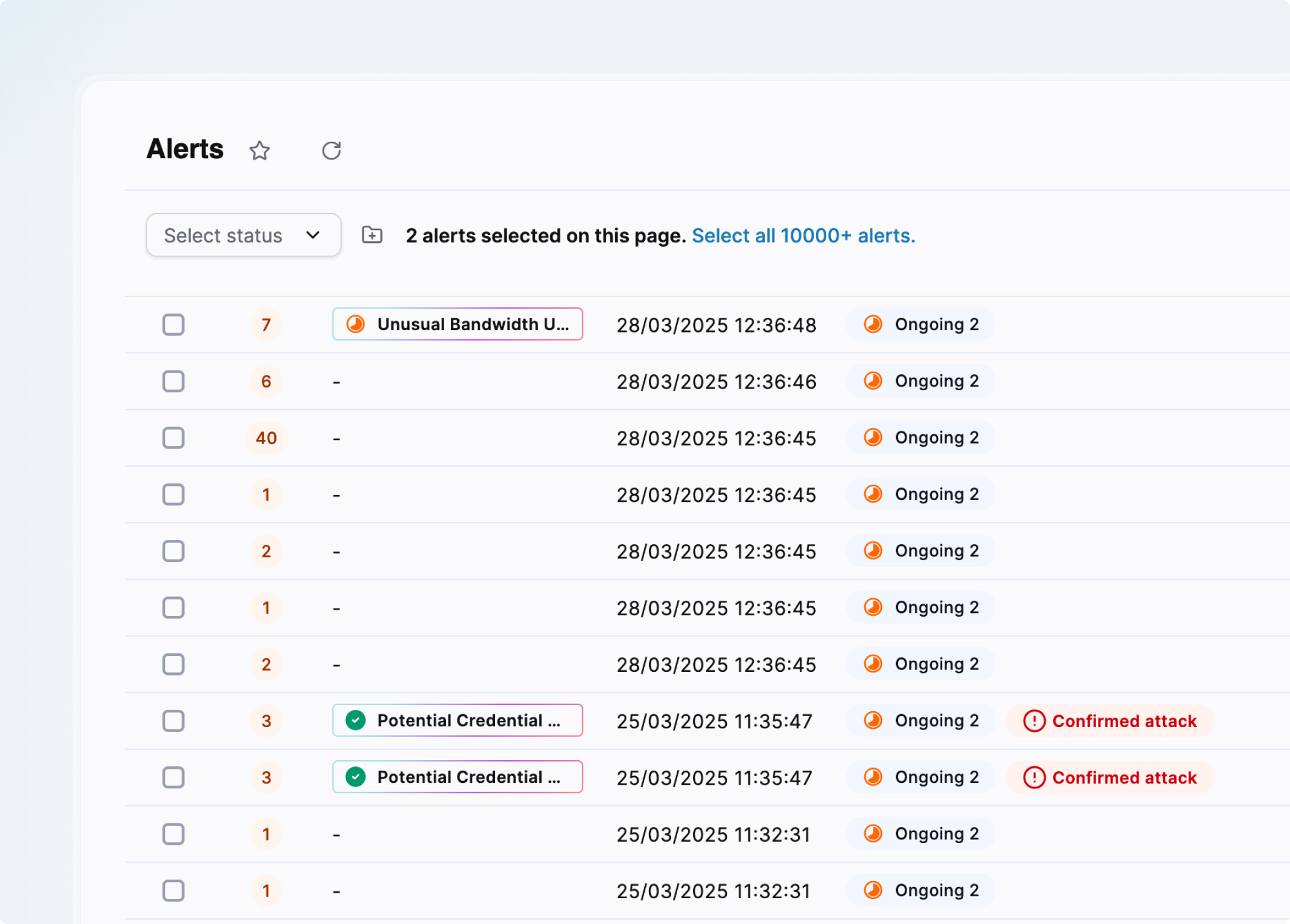
The following controls are available at the top of the page:
- Refresh: reloads the list to show newly generated alerts.
- Filters: opens the filter panel.
- Show/hide columns: lets you select which columns to display and reorder them by dragging.
- Sort order: sort alerts by Most Frequent, Recently Updated, Recently Created, or Most Urgent.
Filters
The filter panel lets you build complex queries, combine multiple criteria, and exclude specific values.
Apply filters
To open the filter panel, click Filter or press F. Search for the filter you want, then select one or multiple values. Change the operator (is, is not, is any of) to refine the query.
Tip
Filters are combined with the AND operator by default. Add as many as needed.
Note
To edit an active filter, click its value or operator and select a new one. The update applies immediately.
Keyboard shortcuts
| Key | Action |
|---|---|
F |
Open the filter menu |
| Up / Down arrows | Navigate through the filter or value list |
| Enter | Confirm a selection |
| Esc | Close the filter menu |
Pre-made filters
Two pre-made filters are available at the top of the filter list:
| Pre-made filter | Composition |
|---|---|
| Open | Status is any of all statuses in the Open and In Progress stages (for example, Pending, Acknowledged, Ongoing in the default configuration) |
| New today | Created at: today |
Available filters
| Filter | Description |
|---|---|
| Asset | Lists impacted assets within alerts. |
| Created at | Filter by creation date (date range or relative date). |
| Custom fields | Filter by any custom field defined in your community. See Custom fields. |
| Entity | Filter by the entity where the alert occurred. |
| Rule | Filter by the rule that raised the alert. Hover over a value in the Rule column and click + to add it as a filter directly. |
| Source | Filter by alert source. Hover over a value in the Source column and click + to add it. |
| Status | Filter by alert status. Default statuses include Acknowledged, Closed, Ongoing, Pending, and Rejected. |
| Target | Filter by alert target. Hover over a value in the Target column and click + to add it. |
| Threat | Filter by threats related to the alert. |
| Type | Filter by alert type. |
| Updated | Filter by last update date (date range or relative date). |
| Urgency | High (75–100), Medium (50–74), Low (0–49). |
Tip
To list only alerts raised by the same rule, hover over the rule name in the table and click + to add it as a filter automatically.
Tip
For partners, an additional filter is available to display alerts from all or a subset of managed communities.
Add alerts to a case
You can add multiple alerts to a single case to consolidate information for a broader investigation.
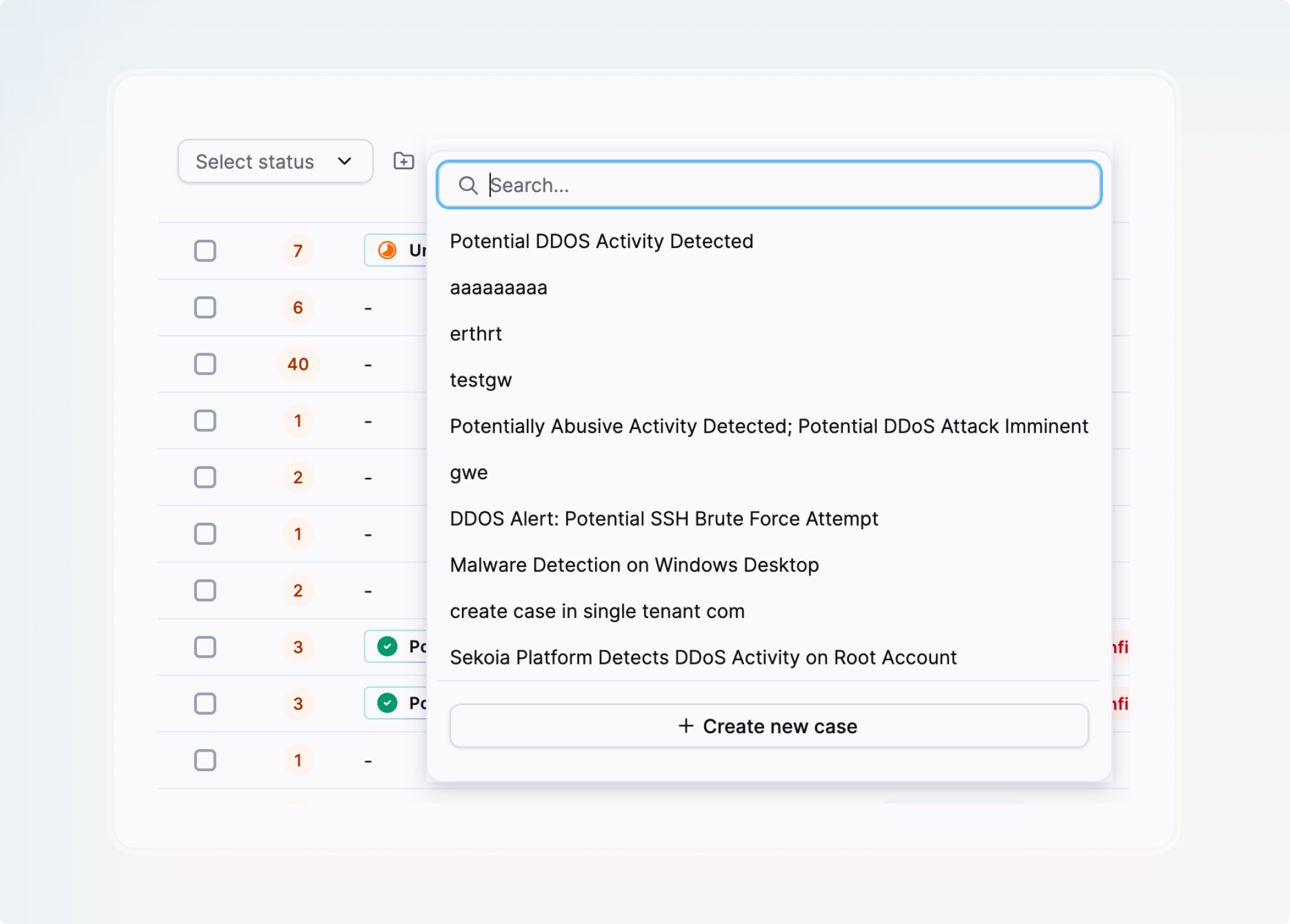
- Apply filters if needed.
- Select alerts using the checkboxes. A counter shows how many are selected.
- To select all alerts across all pages, click Select all XX alerts.
- Confirm the selection.
- Select an existing case or create a new one.
Note
In multi-tenant communities, alerts can only be added to cases that belong to the same community.
Change alert status in bulk
You can update the status of multiple alerts at once and leave a comment to document your decision.
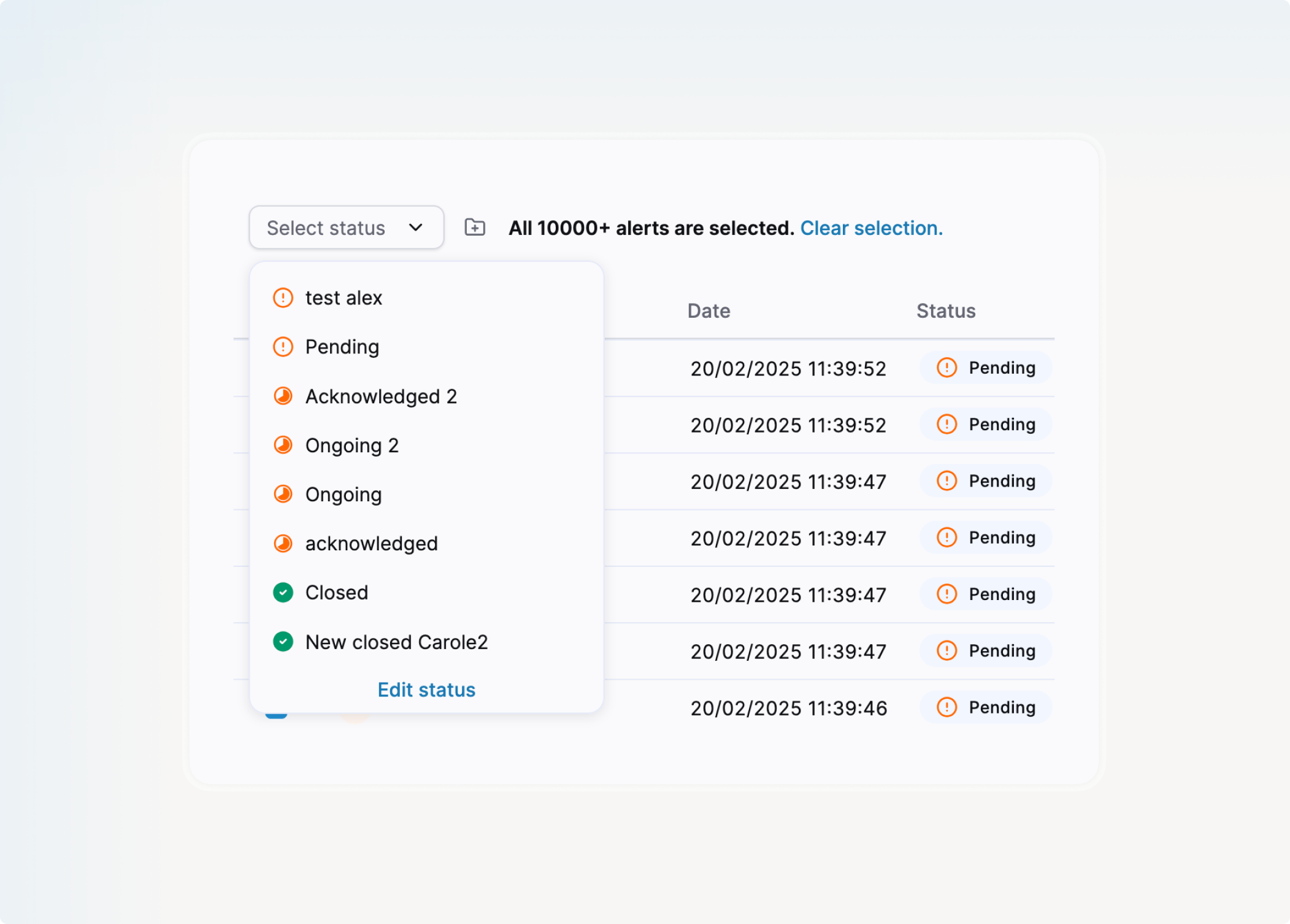
- Apply filters if needed.
- Select alerts using the checkboxes. A counter shows how many are selected.
- To select all alerts across all pages, click Select all XX alerts.
- Confirm the selection.
- Select the new status to apply.
- Enter a comment explaining your decision and click Update status.
Note
Adding a comment is optional but recommended to provide context for the status change.
Table columns
The following columns are available in the alerts listing:
| Column | Description |
|---|---|
| Selector | Checkbox to select an alert for bulk actions. |
| Occurrence | Number of similar events grouped into this alert. See Alert similarity. |
| Date | Alert creation date. |
| Status | Current alert status. Hover to see the modification date and the analyst who changed it. |
| Entity | Entity associated with the alert. |
| Urgency | Urgency score from 0 to 100. See Alert urgency. |
| Type | Alert type. |
| Name | Name of the rule that triggered the alert. |
| Threats | Related threats, including malicious activities, tools, and campaigns. |
| First seen / Last seen | Dates of the first and last matching events. |
| ID / UUID | Alert identifiers. |
| Source / Target | Source and target of the alert. |
| Commu. | Communities related to the alert. |
Note
Your column configuration and active filters are saved automatically across sessions.
Related links
- Alerts: Overview of how alerts work, including urgency calculation, similarity strategies, and types.
- Alert details: How to investigate an individual alert across its details, events, and graph investigation tabs.
- Cases: How to create and manage cases grouping multiple alerts.
- Custom fields: Reference for adding structured metadata to alerts and cases.