Create a notification
Notification rules let you receive alerts through your preferred channel when a specific event occurs in your workspace, such as a new high-urgency alert, an intake going silent, or a new threat report being published. This article walks you through creating a notification rule from scratch.
Before you begin
- You must be logged in to Sekoia with any role (Guest, Analyst, or Admin).
- If you plan to deliver notifications to Slack, Teams, or Mattermost, have your incoming webhook URL ready before starting.
Create a notification rule
- Navigate to the bottom of the left-hand navigation menu and click Settings.
- Select the Notifications tab.
- Click + New notification rule.
First notification
If you have no existing rules, the listing page appears empty with a + Notification button instead. Click it to start.
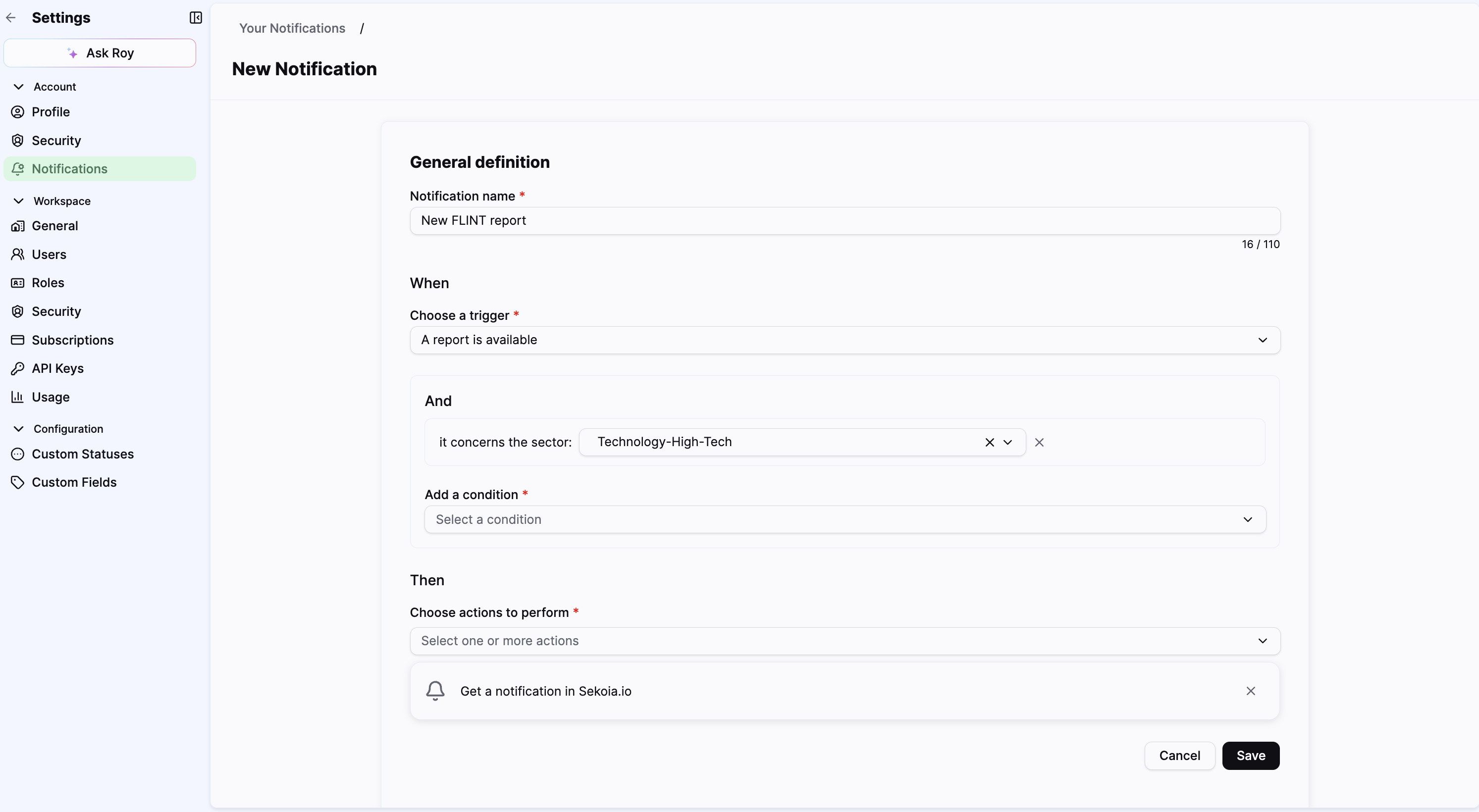
- Enter a descriptive name in the Notification name field (for example,
High-urgency alerts on production assets). - Select the event type from the Select a trigger dropdown. See Notification system overview for the full list of available triggers.
- In the And section, define filters to narrow down which events qualify. Conditions are optional but strongly recommended to avoid noise.
- In the Then section, select your delivery method:
- Notification: Displays in the Sekoia notification panel.
- E-mail: Enter the recipient email address. Enable Enrich email with contextual info to include event details in the message body.
- Slack, Teams, or Mattermost: Paste your incoming webhook URL.
- Webhook — Enter the URL of your HTTP endpoint to receive a JSON payload.
- Click Save.
Your rule is now active and appears in your personal notification list.
Find your incoming webhook URL
If you have not set up an incoming webhook for your messaging platform yet:
- Slack: Sending messages using Incoming Webhooks
- Microsoft Teams: Create incoming webhooks
- Mattermost: Mattermost incoming webhooks
Example: High-urgency alert on a production asset
This example shows how to set up a notification that fires when a critical asset is involved in a high-urgency alert.
High-urgency alert notification
Trigger: A new alert is raised
Conditions:
- Urgency is greater than 80
- Asset name contains Production
Action: Send an email and a Slack message
Result: Whenever an alert matching these criteria is raised, you receive an email and a Slack message with a direct link to the alert.
Related links
- Notification system overview — Full list of available triggers and delivery channels.
- Manage notifications — How to edit, disable, or delete an existing notification rule.
- Notification examples — Ready-to-use templates for intake monitoring, alerts, playbooks, and reports.