Customize your interface
Sekoia's interface can be adjusted to match your daily workflow. You can pin your most-used pages, reorganize the navigation menu, and control what information is visible in your data tables. These settings are saved to your account and persist across sessions.
Add pages to favorites
Pinning a page to your favorites moves it to the top of the navigation menu for quick access.
To add a page to your favorites:
- Hover over the page name in the navigation menu.
- Click the star icon that appears next to the page name.
The page now appears pinned at the top of the navigation menu.
To remove a page from your favorites, hover over it and click the star icon again.
Reorder menu sections
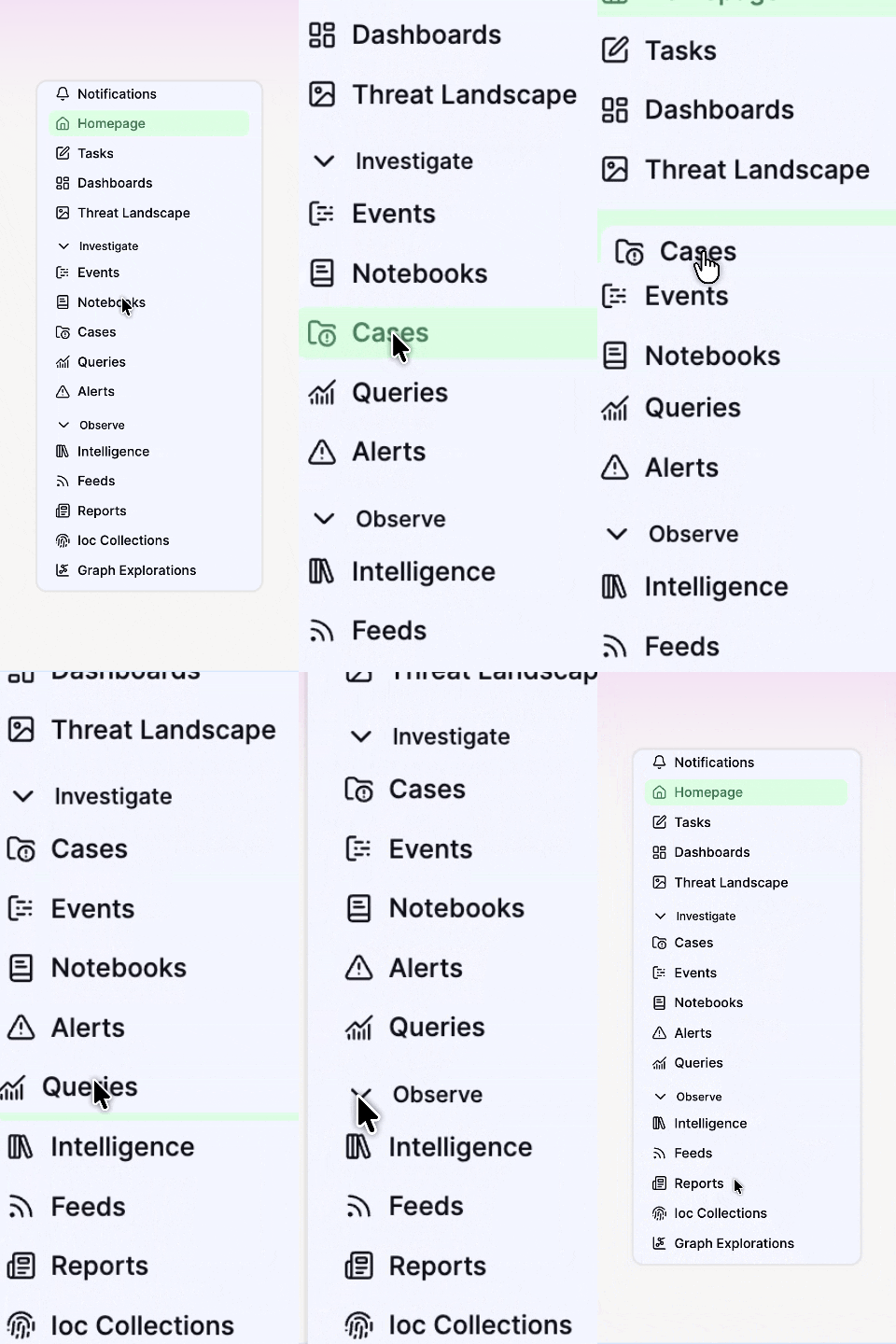
You can rearrange the sections in the navigation menu to reflect the order in which you use them.
To reorder a section:
- Click and hold the section header you want to move.
- Drag it to the desired position in the menu.
- Release to place it in the new position.
📸 [SCREENSHOT SUGGESTION: The left-hand navigation menu with a section header being dragged to a new position, showing the drag handle and drop zone. | ALT TEXT: Navigation menu showing a section being moved by drag and drop.]
Customize table columns
On pages that display data in tables (such as Alerts, Rules Catalog, or Intakes), you can control which columns are visible and in what order they appear.
To customize columns on a table page:
- Click the columns icon at the top of the table.
- Select the columns you want to display.
- Deselect the columns you want to hide.
- To change their order.
- To change their order, click the 6 dots on the left of column name and drag.
Your column configuration is saved per page.
Alerts table
On the Alerts page, customizing which columns are visible is especially useful for surfacing the data most relevant to your triage workflow, such as urgency, entity, rule name, or asset.
Set a preferred authentication method
Sekoia supports two authentication methods: password combined with a one-time code from an authenticator app (TOTP), or single sign-on (SSO) if your administrator has configured it for your workspace.
To select your preferred method:
- Click your name at the bottom of the navigation menu.
- Select Profile and security.
- In the Security section, select your preferred authentication method.
To set up or change your authentication configuration, see Secure your account.
Related links
- Navigate the platform — How the navigation menu is structured and how to use filters.
- Secure your account — Enable two-factor authentication and manage your authentication settings.