Trigger a manual Elevate analysis
This article explains how to trigger an Elevate investigation on an alert that was not analyzed automatically, for example because it was created before Elevate was activated or because it was excluded by a rule filter.
Prerequisites
- Elevate is activated on your workspace or community. See Activate Elevate on a workspace.
- The alert has not yet been analyzed. The Verdict column shows no AI state, or the alert was excluded by the rule filter.
Assign the alert to Roy
Roy is the Elevate investigation agent. Assigning an alert to Roy triggers an immediate analysis.
- Navigate to Investigate > Alerts.
- Select the alert you want to analyze.
- Select the Assignee field in the alert header.
- Select Roy.
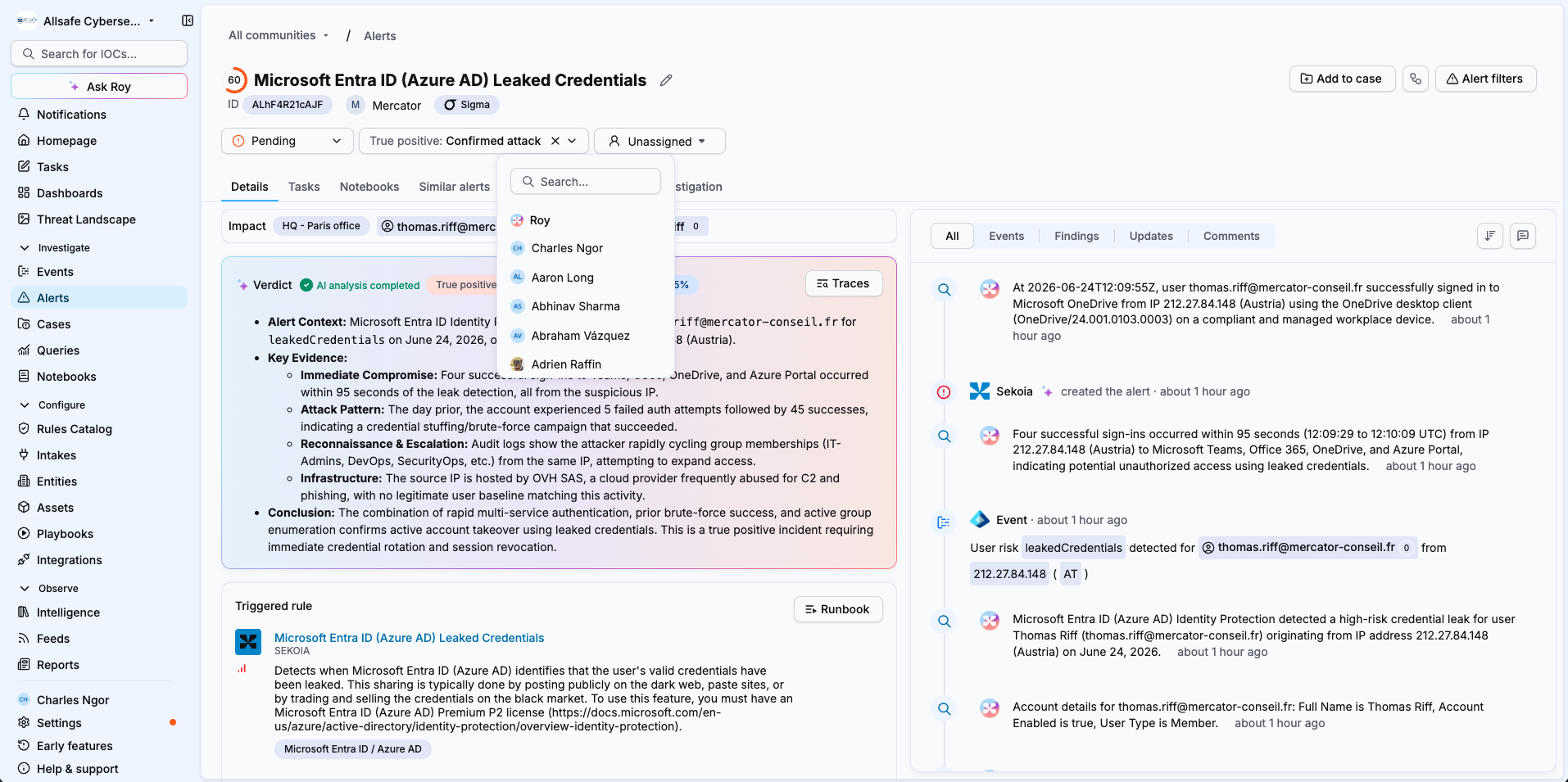
Result
The agent begins analyzing the alert. The Verdict column updates to In progress while the analysis runs. Once complete, the verdict and findings are available in the alert details.
Run consumption
A manually triggered analysis consumes one run from your monthly run pack, the same as an automatic analysis.
To investigate a case instead of an alert, assign the case to Roy. See Investigate a case with Elevate.
Related articles
- Investigate an alert with Elevate: How to read the AI investigation report once the analysis is complete.
- Investigate a case with Elevate: How to trigger an Elevate investigation on a case by assigning it to Roy.
- Elevate analysis states: Reference table of all possible AI analysis states and their meaning.
- Manage your Elevate runs: How to monitor and optimize your monthly run pack.