Investigate a case with Elevate
Elevate investigates cases the same way it investigates alerts. This article explains how to trigger a case investigation by assigning the case to Roy, and what the case displays once the analysis is complete.
Prerequisites
- Elevate is activated on your workspace or community. See Activate Sekoia Elevate on a workspace.
Assign the case to Roy
Roy is the Elevate investigation agent. Assigning a case to Roy triggers an immediate investigation.
- Navigate to Cases.
- Select the case you want to analyze.
- Select the Assignee field in the case header.
- Select Roy.
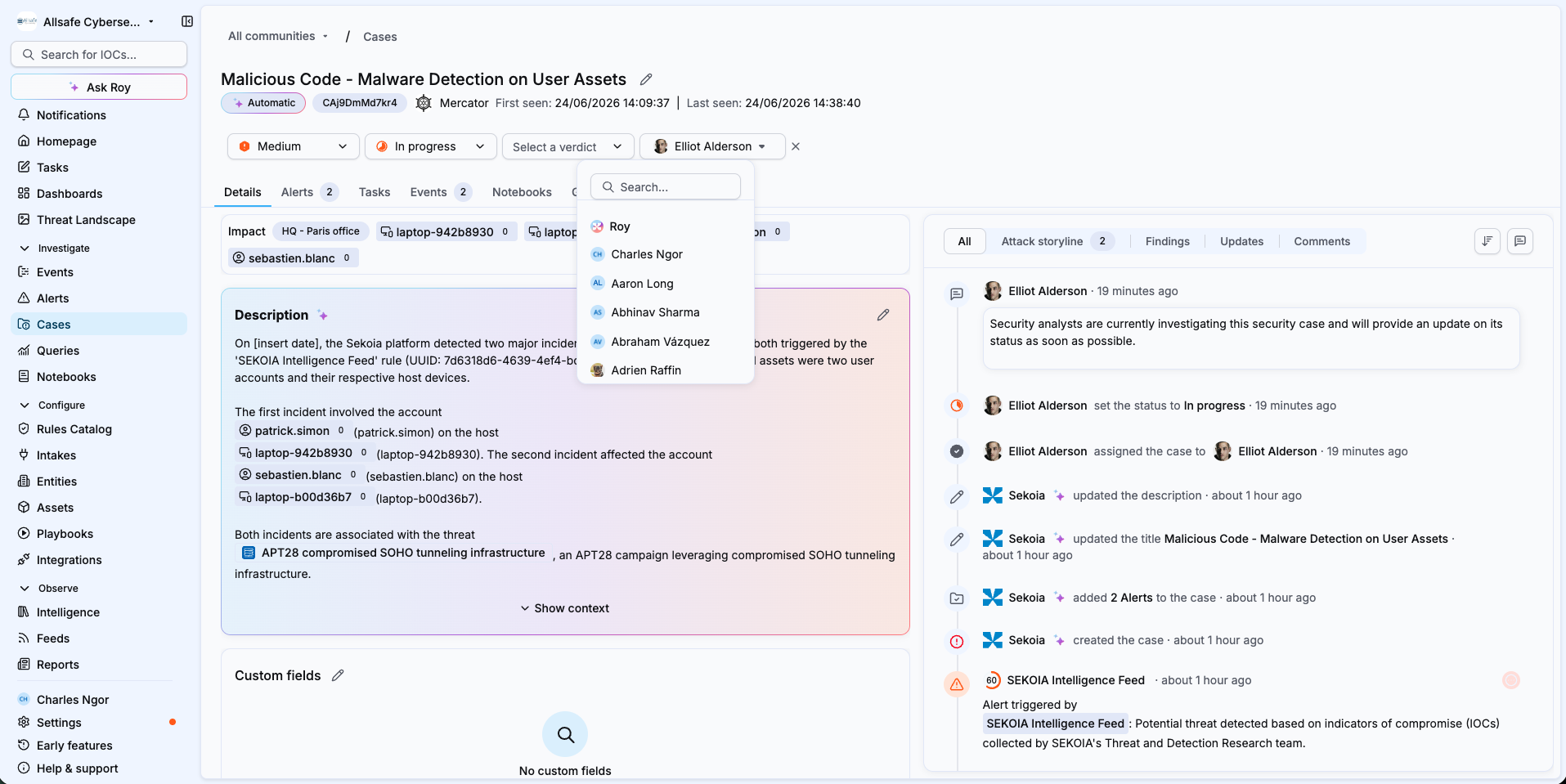
Result
The agent begins investigating the case. Once complete, the case displays the verdict (with its confidence score and explanation), the findings, and the reasoning questions, the same outputs as an alert investigation. To learn how to read them, see Investigate an alert with Elevate and The Elevate investigation method.
Case-level investigation
Elevate investigates the case as a whole and produces a single case-level verdict, findings and reasoning questions. It does not generate separate verdicts for the individual alerts contained in the case.
Run consumption
A case investigation consumes one run from your monthly run pack, the same as an alert investigation.
Related articles
- Investigate an alert with Elevate: How to read the verdict, findings and reasoning questions of an Elevate investigation.
- The Elevate investigation method: How runbooks, reasoning questions, findings and verdicts work together.
- Audit an Elevate investigation with Traces: How to review the full timeline of actions the agent performed.
- Trigger a manual Elevate analysis: How to investigate an alert that was not analyzed automatically.
- Manage your Elevate runs: How to monitor and optimize your monthly run pack.