Activate Sekoia Elevate on a workspace
This article explains how to enable Elevate investigation agent on your workspace so it automatically analyzes all incoming alerts.
Prerequisites
- Your Sekoia plan includes Sekoia Elevate module. To verify, navigate to Settings > Subscriptions and confirm that an Elevate entry appears alongside your current plan.
- You have administrator-level access to the workspace.
Activate the agent
The Elevate investigation agent is available as soon as the Elevate add-on is enabled on your workspace. The agent is disabled by default so you control when quota consumption begins.
Run consumption starts immediately
Enabling the agent triggers analysis of all new incoming alerts across all communities in the workspace. Each analysis consumes one run from your monthly run pack. Review your run pack before activating.
To activate the agent:
- Navigate to Settings > AI agents.
- Select Alert/Case Investigation agent under the Workspace section.
- Toggle Auto-analyze alerts to enabled.
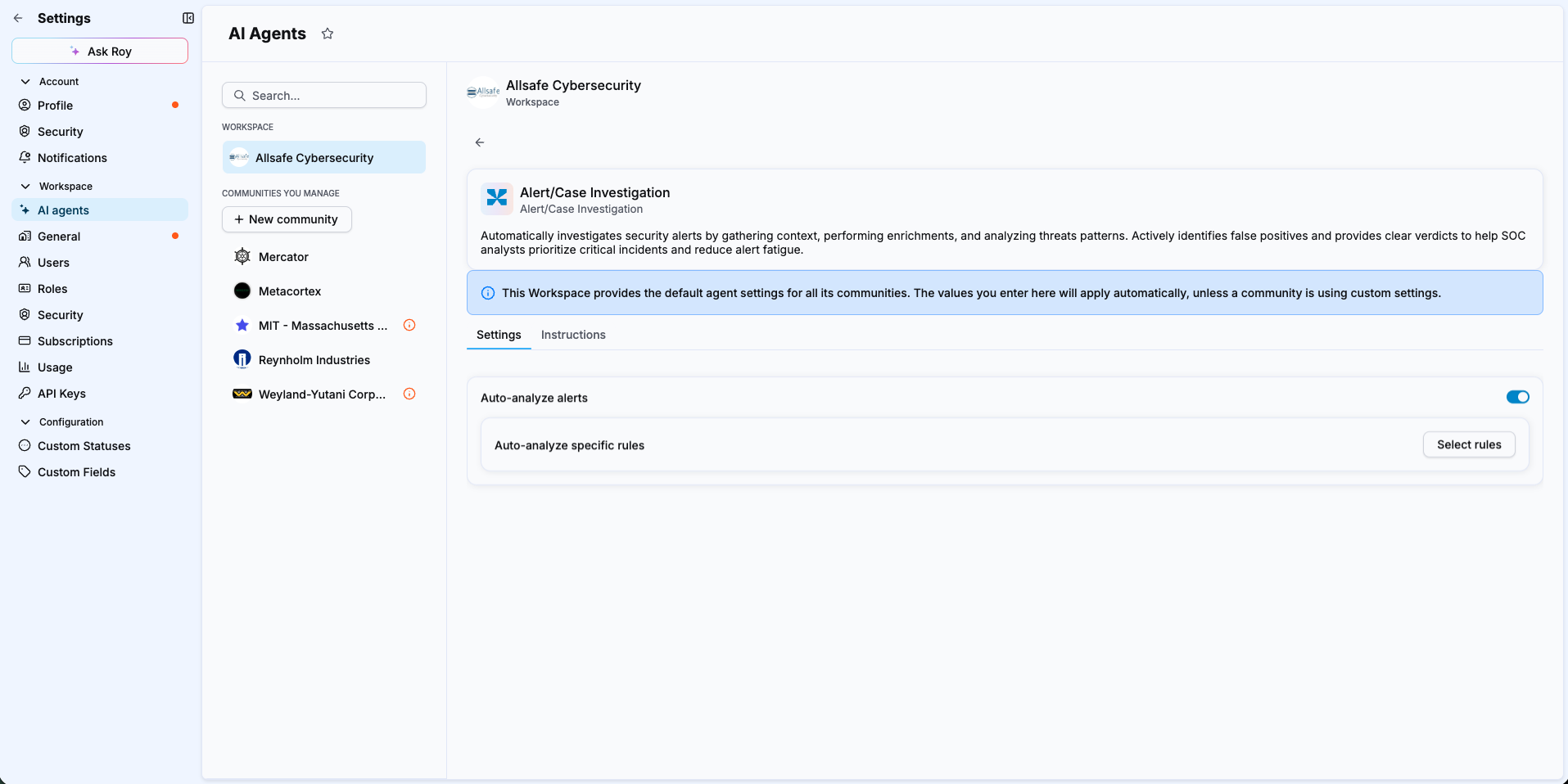
Once enabled, the agent analyzes every new alert that arrives across all communities in the workspace.
Add agent instructions
The Instructions field lets you provide contextual guidance the agent takes into account when analyzing alerts. Use it to describe environment-specific context, known legitimate behaviors, or investigation priorities specific to your organization.
For step-by-step configuration and examples, see Add custom instructions for an Elevate agent and Write effective instructions for Elevate.
Result
New incoming alerts are automatically analyzed by the Elevate agent. The Verdict column in the alert list updates as each investigation completes.
Related articles
- Add custom instructions for an Elevate agent: How to give the agent environment-specific context.
- Limit auto-analysis to specific rules: How to restrict which alerts Elevate analyzes to control run consumption.
- Override Elevate settings for a community: How to enable or disable Elevate independently for a specific community.
- Manage your Elevate runs: How to monitor and optimize your monthly run pack.